Systemd filesystem protection: hardening part 2, directive by directive
Part 2 of the series on systemd hardening: the directives that decide which files a service can read, write or see, tested on Rocky Linux 10.2.
Systemd filesystem protection decides which files a service can read, write or even see. This part covers the directives that shape the file tree of a service: ProtectSystem, ProtectHome, PrivateTmp, ReadWritePaths and their relatives.
When a service is compromised, or simply buggy, the file tree is where the damage happens. A service that cannot write to /etc cannot rewrite its own configuration, and a service that cannot see /home cannot read your SSH keys. Systemd filesystem protection costs a few lines in a drop-in file. But each line can also block a legitimate write, so for every directive I explain what it does, what it can break and how it touches my own stack. You do not need any systemd experience: each step comes with the full command and a comment on every step.
Test bench. Every output in this article comes from a real run on Rocky Linux 10.2 with systemd 257, inside a WSL2 virtual machine (kernel 6.18.54.1-microsoft-standard-WSL2, running as root). SELinux is disabled there, and a few kernel features differ from a normal server. I say so wherever it matters. My test files and directories start with _sd2_, so you can find and delete them easily. When I cut a line from an output, I replace it with [...], and I mark what I did not run as not tested.
Before you start
Read this short list first. It keeps you from hardening a production service on the first try.
A test machine. Use a virtual machine or a spare server that runs systemd. I tested only on Rocky Linux 10.2. The directives belong to systemd itself, so other distributions should behave the same, but I did not check.
**A shell with sudo.** Every command that changes the system starts with sudo. My bench ran as root, so my outputs come from root commands.
A demo service. The lab below creates demo-hardening-fs.service, a harmless service that only tries to create empty files. You never touch a real service.
A way back. Each change lives in a drop-in file. systemctl revert deletes it, and the lab ends with a clean-up step.
A look at your version. Run systemctl --version. I could test only version 257, so if your systemd rejects a directive, read its entry in the systemd.exec manual page.
A short glossary
| Term | What it means here |
|---|---|
| Mount namespace | A private copy of the list of mounted file systems. A change made inside it does not appear on the host. |
| Read-only | A path where reads work and writes fail with the message “Read-only file system”. |
| tmpfs | A file system kept in memory. It starts empty and disappears when it is unmounted. |
| Bind mount | The same directory made visible at a second place of the tree. |
| API file systems | /proc, /sys and /dev, which the kernel provides. A service needs them to run. |
| Drop-in | A small .conf file in a .d directory that changes a unit without editing the original file. |
| Directive | One setting of a unit file, such as ProtectSystem=strict. |
| Transient unit | A temporary unit that systemd-run creates on the fly. It disappears when it stops. |
| Service user | The account that runs the service, set with User= in the unit. |
At a glance
This table is the map of systemd filesystem protection in this article. The last column comes from my homelab notes: it says where the directive already protects, or already broke, one of my services.
| Directive | What it does | What it can break | In my stack |
|---|---|---|---|
ProtectSystem= | Mounts /usr, then /etc, then the whole tree read-only | Any write outside your exceptions | Kavita, Navidrome, mktxp, mox and Etherpad run with strict |
ProtectHome= | Hides or freezes /home, /root and /run/user | Programs that keep caches or keys in their home directory | Kavita uses yes; Oxidized needed read-only |
PrivateTmp= | Gives the service its own /tmp and /var/tmp | Services that share files through /tmp | Kavita opens the host /tmp instead |
PrivateMounts= | Puts the service in its own mount namespace | Mounts the service makes for others | My notes do not mention it |
ReadWritePaths= | Opens writable exceptions | A missing path stops the service | The most frequent fix in my notes |
ReadOnlyPaths= | Freezes a path inside a writable area | A write there fails | My notes do not mention it |
InaccessiblePaths= | Hides a path completely | Any read there fails | My notes do not mention it |
ExecPaths= and NoExecPaths= | Allow or forbid running programs from a path | Binaries in a forbidden path (error 203) | My notes do not mention them |
BindPaths= and BindReadOnlyPaths= | Show a directory at a second place | Wrong source or destination | My notes do not mention them |
TemporaryFileSystem= | Replaces a directory with an empty tmpfs | Everything that lived in that directory | My notes do not mention it |
StateDirectory= and friends | Create managed directories with the right owner | Ownership and mode surprises | Navidrome lists such paths by hand today |
RestrictFileSystems= | Allows only some file system types | Needs a kernel feature (BPF LSM) | My notes do not mention it |
RootDirectory=, RootImage= | Run the service in a chroot or in a disk image | Everything the service expects to find | My notes do not mention them |
Systemd filesystem protection: how a service gets its own view
When systemd starts a service, it can first give it a private mount namespace. In plain words, the service gets its own copy of the list of mounts. Systemd then edits that copy: it remounts some paths read-only, hides others and adds private temporary directories. The host does not change. Only the processes of this service see the difference.
Three consequences matter for a beginner. First, the rules apply to every process of the service, root included. My bench ran as root, and writes were still refused. Second, a rule is not a permission: the file stays writable for every other process of the machine. Third, a blocked access rarely says “Permission denied”. In my runs it said “Read-only file system” or “No such file or directory”, so read these messages with that in mind.
The method is always the same. Close a large area first, then open the few exceptions the service needs. ProtectSystem, ProtectHome and PrivateTmp close. The path directives and the *Directory= family open. The rest of the article follows that order.
ProtectSystem: three levels of read-only
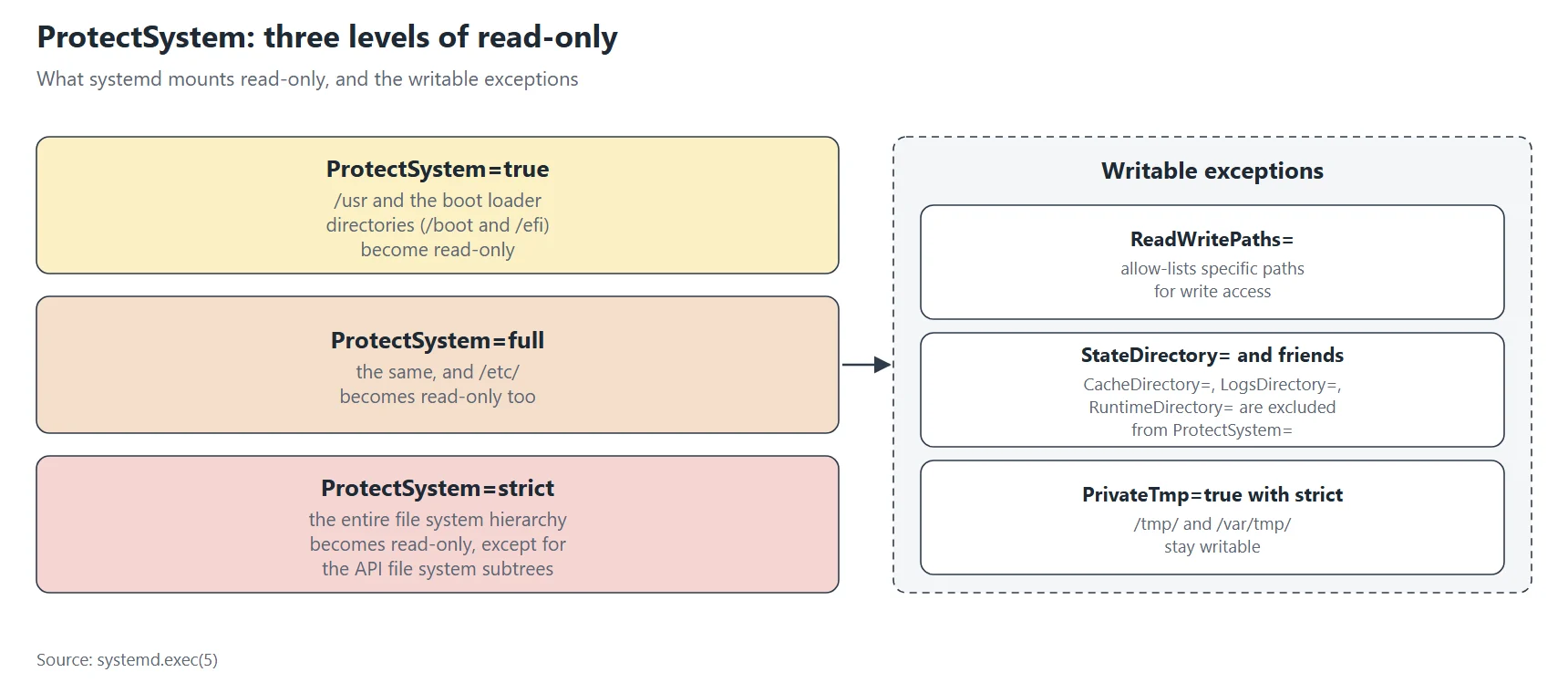
ProtectSystem= is the core of systemd filesystem protection, and it takes four values. no is the default and changes nothing. yes (also written true) mounts /usr and the boot loader directories read-only. full adds /etc. strict mounts the entire file tree read-only, except /dev, /proc and /sys. Writable exceptions come from ReadWritePaths=, from the *Directory= settings and from PrivateTmp=.
I ran one probe per value. It tries to create an empty file in four places. The -P flag of systemd-run shows the output in your terminal, so you see the result at once. Here is the command for strict:
# Run one command in a temporary unit that has ProtectSystem=strict
# -P (--pipe) shows the output here, --wait waits for the end, -G (--collect) removes the unit afterwards
sudo systemd-run --quiet --pipe --wait --collect -p ProtectSystem=strict \
  sh -c 'for d in /usr /etc /var/tmp /tmp; do
    if err=$(touch "$d/_sd2_test" 2>&1); then echo "$d: write OK"
    else echo "$d: write refused -> ${err##*: }"; fi
  done'
# With ProtectSystem=no the test files really exist on the host: remove them
sudo rm -f /usr/_sd2_test /etc/_sd2_test /var/tmp/_sd2_test /tmp/_sd2_test
And here is its output:
/usr: write refused -> Read-only file system
/etc: write refused -> Read-only file system
/var/tmp: write refused -> Read-only file system
/tmp: write refused -> Read-only file system
I ran the same probe for the other values and for two combinations. This table sums up the results, and every cell is a real answer:
| Value | /usr | /etc | /var/tmp | /tmp |
|---|---|---|---|---|
no | write OK | write OK | write OK | write OK |
yes | refused | write OK | write OK | write OK |
full | refused | refused | write OK | write OK |
strict | refused | refused | refused | refused |
strict + PrivateTmp=yes | refused | refused | write OK | write OK |
strict + ReadWritePaths=/etc | refused | write OK | refused | refused |
Two lessons come out of this table. First, strict also freezes /tmp and /var/tmp, and many programs cannot start without a temporary directory. So strict usually goes together with PrivateTmp=yes. Second, an exception from ReadWritePaths= opens only the path you name: with /etc open, /tmp stayed read-only.
A surprise: /home and /root stay writable under strict
The manual describes strict as a read-only file tree except the API file systems. My bench disagrees for two directories. I ran a second probe:
sudo systemd-run --quiet --pipe --wait --collect -p ProtectSystem=strict \
  sh -c 'for d in /home /root /opt /srv /var/lib; do
    if err=$(touch "$d/_sd2_diag" 2>&1); then echo "$d: write OK"
    else echo "$d: write refused -> ${err##*: }"; fi
  done'
sudo rm -f /home/_sd2_diag /root/_sd2_diag
/home: write OK
/root: write OK
/opt: write refused -> Read-only file system
/srv: write refused -> Read-only file system
/var/lib: write refused -> Read-only file system
Inside the service, findmnt shows the difference: /home is a separate read-write mount, while the mount that holds /etc is read-only.
# Which mount holds /home and /etc inside the service, and with which options?
sudo systemd-run --quiet --pipe --wait --collect -p ProtectSystem=strict findmnt -T /home -o TARGET,FSTYPE,OPTIONS
sudo systemd-run --quiet --pipe --wait --collect -p ProtectSystem=strict findmnt -T /etc -o TARGET,FSTYPE,OPTIONS
TARGET FSTYPE OPTIONS
/home  ext4   rw,relatime,discard,errors=remount-ro,data=ordered
TARGET FSTYPE OPTIONS
/      ext4   ro,relatime,discard,errors=remount-ro,data=ordered
I do not know whether this comes from WSL2, from this systemd build or from the way the root file system is set up, and I did not dig further. The practical rule is simple: never count on strict to protect home directories. Add ProtectHome= and check the result on your own server with the probe above.
Which value to pick
For a long-running service, start with strict and add exceptions one at a time. My notes show what that looks like in practice. The mktxp exporter tried to write a default configuration file into its configuration directory, and strict blocked it until I added that directory to ReadWritePaths=. Navidrome had a quieter problem. Its backup directory was missing from ReadWritePaths=, so its own backup job failed every night with “unable to open database file”. Nobody noticed for about a week, and each nightly archive weighed 122 bytes. The lesson: after you add strict, read the log of the service for “Read-only file system” for a few days.
ProtectHome: hide, freeze or replace /home
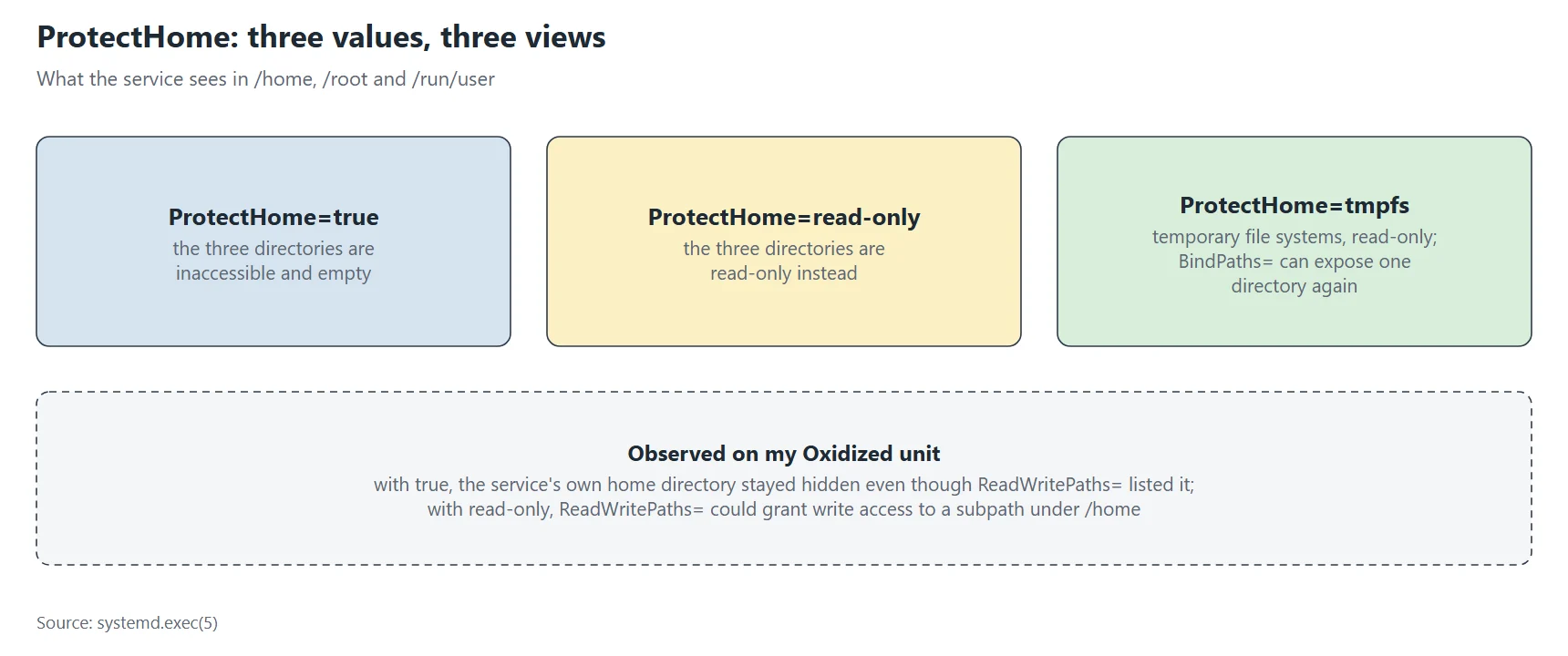
ProtectHome= extends systemd filesystem protection to personal data. It acts on /home, /root and /run/user. With yes (or true), the three directories look empty and nothing inside them can be reached. With read-only, they stay visible but frozen. With tmpfs, the service sees empty temporary file systems instead, and BindPaths= can bring back chosen directories.
I created a fake home directory with one file, then ran one probe per value. Change the value after ProtectHome= to repeat it:
# Prepare a fake home directory with one file
sudo mkdir -p /home/_sd2_user && echo hello | sudo tee /home/_sd2_user/hello.txt > /dev/null
# Change the value after ProtectHome= : no, yes, read-only, tmpfs
sudo systemd-run --quiet --pipe --wait --collect -p ProtectHome=yes \
  sh -c 'echo "ls -A /home:"; ls -A /home 2>&1
         echo "cat hello.txt:"; cat /home/_sd2_user/hello.txt 2>&1
         if err=$(touch /home/_sd2_user/new.txt 2>&1); then echo "write: OK"
         else echo "write: refused -> ${err##*: }"; fi'
# Remove the fake home directory
sudo rm -rf /home/_sd2_user
With yes, the service sees nothing:
ls -A /home:
cat hello.txt:
cat: /home/_sd2_user/hello.txt: No such file or directory
write: refused -> No such file or directory
With read-only, the service reads the file but cannot write. A line that names the real home directory of my account is cut:
ls -A /home:
[...]
_sd2_user
cat hello.txt:
hello
write: refused -> Read-only file system
| Value | Directory listing | Read the file | Write |
|---|---|---|---|
no | visible | OK | OK |
yes | empty | No such file or directory | No such file or directory |
read-only | visible | OK | Read-only file system |
tmpfs | empty | No such file or directory | No such file or directory |
yes + ReadWritePaths= on the subdirectory | empty | No such file or directory | No such file or directory |
read-only + ReadWritePaths= on the subdirectory | visible | OK | OK |
tmpfs + BindPaths= on the subdirectory | only that subdirectory | OK | OK |
The last three rows are the ones to remember. ReadWritePaths= cannot reopen a path under ProtectHome=yes. It works under read-only, and tmpfs with BindPaths= works too. My notes record the same trap on a real service: Oxidized, which backs up network device configurations, could not use its own home directory under ProtectHome=true, even though ReadWritePaths= listed it. Switching to read-only fixed it. On my server the error was “permission denied”; on the bench it was “No such file or directory”. Both mean the path is out of reach. I ran the bench as root, which may explain the different message.
Name the subdirectory, not /home
A second trap: ReadWritePaths= needs the exact subdirectory. I tried the parent first, then the subdirectory, both with ProtectHome=read-only. The probe tries to write to both places:
# Two runs with ProtectHome=read-only: ReadWritePaths on /home itself, then on a subdirectory
sudo mkdir -p /home/_sd2_sub
for rw in /home /home/_sd2_sub; do
  echo "ReadWritePaths=$rw"
  sudo systemd-run --quiet --pipe --wait --collect -p ProtectHome=read-only -p ReadWritePaths=$rw \
    sh -c 'for d in /home /home/_sd2_sub; do
      if err=$(touch "$d/_sd2_p" 2>&1); then echo "  $d: write OK"
      else echo "  $d: write refused -> ${err##*: }"; fi
    done'
done
sudo rm -rf /home/_sd2_sub /home/_sd2_p
ReadWritePaths=/home
  /home: write refused -> Read-only file system
  /home/_sd2_sub: write refused -> Read-only file system
ReadWritePaths=/home/_sd2_sub
  /home: write refused -> Read-only file system
  /home/_sd2_sub: write OK
Listing /home opened nothing, not even the subdirectory under it. Listing the subdirectory opened it, and /home stayed read-only.
When the program wants its home directory
Many programs write caches or keys under $HOME. If ProtectHome=yes hides it, they fail in confusing ways. Two real cases from my notes: Kavita could not register its first user, because the .NET key store defaults to a folder in the home directory of the service account. Etherpad’s build tool pnpm found no writable home under strict either. In both cases I did not widen the sandbox. I set Environment=HOME= to a directory that was already writable, inside the application’s own folder. That keeps the protection and satisfies the program.
PrivateTmp and PrivateMounts: private places
PrivateTmp=yes gives the service its own /tmp and /var/tmp. Systemd creates them when the service starts and deletes them when it stops. Other services, and you, cannot see what is inside. This blocks a whole class of attacks that rely on predictable file names in /tmp. I ran the same command with and without it. A file named _sd2_host_file already existed in the host /tmp:
touch /tmp/_sd2_host_file
# Same command twice: without, then with PrivateTmp=yes
sudo systemd-run --quiet --pipe --wait --collect \
  sh -c 'echo "files named _sd2_* seen in /tmp:"; ls -A /tmp | grep _sd2_; touch /tmp/_sd2_in_unit && echo "created /tmp/_sd2_in_unit"'
# Remove the file that this first run created on the host
sudo rm -f /tmp/_sd2_in_unit
sudo systemd-run --quiet --pipe --wait --collect -p PrivateTmp=yes \
  sh -c 'echo "files named _sd2_* seen in /tmp:"; ls -A /tmp | grep _sd2_; touch /tmp/_sd2_in_unit && echo "created /tmp/_sd2_in_unit"'
# What does the host see afterwards?
ls -A /tmp | grep _sd2_
sudo rm -f /tmp/_sd2_host_file /tmp/_sd2_in_unit
files named _sd2_* seen in /tmp:
_sd2_host_file
created /tmp/_sd2_in_unit
files named _sd2_* seen in /tmp:
created /tmp/_sd2_in_unit
_sd2_host_file
Without PrivateTmp, the service sees the host file. With it, the service sees an empty /tmp, creates its own file and leaves nothing behind. The last line is the host: it still has its original file and nothing else. Remember that strict makes /tmp read-only, but PrivateTmp=yes gives back a writable private one.
A third value exists in recent versions, PrivateTmp=disconnected. I tested only whether it is accepted. Through systemd-run -p, systemd 257 on my bench refused it:
# The third value, through systemd-run
sudo systemd-run --quiet --pipe --wait --collect -p PrivateTmp=disconnected true
Failed to parse PrivateTmp: disconnected
Written in a unit file, the same value was accepted and the one-shot service ran to the end without complaint. I did not test what it changes, so treat its behavior as not tested.
In my stack, Kavita opens the host /tmp with ReadWritePaths= instead of using PrivateTmp=yes. A private /tmp would be tighter. I have not tried it yet.
PrivateMounts
PrivateMounts=yes puts the service in its own mount namespace and does nothing else. Mounts that the service makes do not leak to the host. I tested it with a tmpfs mounted from inside the service:
sudo mkdir -p /mnt/_sd2_pm
# Mount a tmpfs inside the service, then look at it from the host
sudo systemd-run --quiet --pipe --wait --collect -p PrivateMounts=yes \
  sh -c 'mount -t tmpfs none /mnt/_sd2_pm && touch /mnt/_sd2_pm/x && findmnt -n -o TARGET,FSTYPE /mnt/_sd2_pm'
findmnt /mnt/_sd2_pm || echo "not mounted on the host"
sudo rmdir /mnt/_sd2_pm
/mnt/_sd2_pm tmpfs
not mounted on the host
Most directives in this article switch on a private mount namespace by themselves, so you rarely need to set PrivateMounts=yes yourself. It matters for a service that mounts file systems and must not disturb the host.
ReadWritePaths, ReadOnlyPaths and InaccessiblePaths
These three directives let you tune systemd filesystem protection path by path. Each takes a list of paths separated by spaces. You can repeat them, and the lists add up. ReadWritePaths= makes a path writable again under ProtectSystem. ReadOnlyPaths= freezes a path inside an area that is otherwise writable. InaccessiblePaths= hides it. I tested the last two on a throwaway directory:
D=/var/tmp/_sd2_dir
mkdir -p $D && echo data > $D/file.txt
# Read-only: the file stays readable, a new file cannot be created, the rest of /var/tmp stays writable
sudo systemd-run --quiet --pipe --wait --collect -p ReadOnlyPaths=$D \
  sh -c 'cat /var/tmp/_sd2_dir/file.txt
         if err=$(touch /var/tmp/_sd2_dir/new 2>&1); then echo "write in dir: OK"
         else echo "write in dir: refused -> ${err##*: }"; fi
         touch /var/tmp/_sd2_other && echo "write elsewhere in /var/tmp: OK"'
# Inaccessible: the directory looks empty and nothing can be read
sudo systemd-run --quiet --pipe --wait --collect -p InaccessiblePaths=$D \
  sh -c 'ls -A /var/tmp/_sd2_dir 2>&1; echo "---"; cat /var/tmp/_sd2_dir/file.txt 2>&1'
rm -rf $D /var/tmp/_sd2_other
data
write in dir: refused -> Read-only file system
write elsewhere in /var/tmp: OK
---
cat: /var/tmp/_sd2_dir/file.txt: No such file or directory
The first run shows ReadOnlyPaths=: the file is readable, a new file in the directory is refused, and the rest of /var/tmp stays writable. The second run shows InaccessiblePaths=: the directory looks empty, then the file cannot be read. It still exists on the host.
The leading dash
A path that does not exist when the service starts stops the service. A dash in front of the path tells systemd to ignore it when it is missing:
# A path that does not exist, without then with the leading dash
sudo systemd-run --quiet --pipe --wait --collect -p ReadWritePaths=/nonexistent_sd2 true; echo "exit code: $?"
sudo systemd-run --quiet --pipe --wait --collect -p ReadWritePaths=-/nonexistent_sd2 true; echo "exit code: $?"
exit code: 226
exit code: 0
Exit code 226 is how systemd reports a failure while it builds the namespace. Without the dash, the service did not even start.
Finding the missing path
In my notes, ReadWritePaths= is the most frequent fix. Kavita needed two additions after its first version. It writes its SQLite database into a config folder under its working directory, a path I had not listed. It also rewrites wwwroot/index.html at each start, which only produced a harmless but noisy error. Each time, the log said “Read-only file system”. So my routine is short: start the service, run journalctl -u UNIT | grep -i 'read-only file system', add the one path that appears and repeat. I did not run that exact command on the bench, but it only reads the log.
ExecPaths and NoExecPaths: where programs may run
NoExecPaths= forbids running programs from a path, and ExecPaths= carves out an exception. A web application that accepts uploads is a good use case: nothing uploaded should ever run. I copied true into a throwaway directory and tried to run it three times:
D=/var/tmp/_sd2_dir
mkdir -p $D && cp /usr/bin/true $D/runme
# Run the copy of true: no restriction, then NoExecPaths, then NoExecPaths on the parent with an ExecPaths exception
sudo systemd-run --quiet --pipe --wait --collect $D/runme; echo "no restriction, exit code: $?"
sudo systemd-run --quiet --pipe --wait --collect -p NoExecPaths=$D $D/runme; echo "NoExecPaths, exit code: $?"
sudo systemd-run --quiet --pipe --wait --collect -p NoExecPaths=/var/tmp -p ExecPaths=$D $D/runme; echo "with ExecPaths, exit code: $?"
rm -rf $D
no restriction, exit code: 0
NoExecPaths, exit code: 203
with ExecPaths, exit code: 0
Exit code 203 means that systemd could not execute the program. The last run shows the pattern: forbid a large area, then allow the one subdirectory that must run programs. My notes do not mention these two directives yet, so they are candidates for the upload directories of my web applications.
BindPaths, BindReadOnlyPaths and TemporaryFileSystem
BindPaths= shows a directory at a second place, in the format SOURCE:DESTINATION. BindReadOnlyPaths= does the same but read-only. I made a directory with one file and bound it twice:
S=/var/tmp/_sd2_src
mkdir -p $S && echo hi > $S/hi.txt
# Show $S at a second place: writable, then read-only
sudo systemd-run --quiet --pipe --wait --collect -p BindPaths=$S:/mnt/_sd2_dst \
  sh -c 'ls -A /mnt/_sd2_dst; if echo new > /mnt/_sd2_dst/new.txt; then echo "write OK"; fi'
# The write went through to the source on the host
ls -A $S
sudo systemd-run --quiet --pipe --wait --collect -p BindReadOnlyPaths=$S:/mnt/_sd2_dst \
  sh -c 'if err=$(touch /mnt/_sd2_dst/x 2>&1); then echo "write OK"; else echo "write refused -> ${err##*: }"; fi'
# Systemd created the destination directory on the host
ls -ld /mnt/_sd2_dst
sudo rmdir /mnt/_sd2_dst
hi.txt
write OK
hi.txt
new.txt
write refused -> Read-only file system
drwxr-xr-x 2 root root 4096 Nov  2 15:13 /mnt/_sd2_dst
The first run listed the file and wrote a new one. The host listing right after shows that new.txt reached the source directory. The read-only variant refused the write. Systemd also created the empty destination directory /mnt/_sd2_dst on the host, and the last command shows it. Remove it yourself after the test, as the snippet does.
TemporaryFileSystem= replaces a directory with an empty tmpfs. Combined with a bind mount, it gives you an allow-list: hide a whole area, then show only what the service needs. Here /var/tmp is hidden, then one directory comes back:
S=/var/tmp/_sd2_src
mkdir -p $S && echo hi > $S/hi.txt
# Hide the whole of /var/tmp ...
sudo systemd-run --quiet --pipe --wait --collect -p TemporaryFileSystem=/var/tmp:ro \
  sh -c 'echo "ls -A /var/tmp:"; ls -A /var/tmp'
# ... then let one directory through
sudo systemd-run --quiet --pipe --wait --collect -p TemporaryFileSystem=/var/tmp:ro -p BindReadOnlyPaths=$S \
  sh -c 'echo "ls -A /var/tmp:"; ls -A /var/tmp; cat /var/tmp/_sd2_src/hi.txt'
rm -rf $S
ls -A /var/tmp:
ls -A /var/tmp:
_sd2_src
hi
The first listing is empty, and the second one shows only _sd2_src, whose file is readable. This is the most precise form of systemd filesystem protection, and also the most work. I use it nowhere yet.
StateDirectory and the other directory directives
Five directives create a managed directory for the service and open it for writing, even under ProtectSystem=strict. Systemd also sets an environment variable with the path.
| Directive | Directory | Variable | Removed at stop? |
|---|---|---|---|
StateDirectory= | /var/lib/NAME | STATE_DIRECTORY | no |
CacheDirectory= | /var/cache/NAME | CACHE_DIRECTORY | no |
LogsDirectory= | /var/log/NAME | LOGS_DIRECTORY | no |
RuntimeDirectory= | /run/NAME | RUNTIME_DIRECTORY | yes |
ConfigurationDirectory= | /etc/NAME | CONFIGURATION_DIRECTORY | no |
I ran all five at once as the user nobody, under strict. The probe prints the variables, writes into each directory, and then lists what is left on the host:
N=sd2-demo
# The five *Directory= settings, under ProtectSystem=strict, as the user nobody
sudo systemd-run --quiet --pipe --wait --collect -p ProtectSystem=strict -p User=nobody \
  -p StateDirectory=$N -p CacheDirectory=$N -p LogsDirectory=$N -p RuntimeDirectory=$N -p ConfigurationDirectory=$N \
  sh -c 'env | grep -E "^(STATE|CACHE|LOGS|RUNTIME|CONFIGURATION)_DIRECTORY" | sort
         for d in "$STATE_DIRECTORY" "$CACHE_DIRECTORY" "$LOGS_DIRECTORY" "$RUNTIME_DIRECTORY" "$CONFIGURATION_DIRECTORY"; do
           if err=$(touch "$d/x" 2>&1); then echo "$d: write OK"; else echo "$d: write refused -> ${err##*: }"; fi
         done'
# What is left on the host once the service has stopped? (owner and mode)
for p in /var/lib/$N /var/cache/$N /var/log/$N /run/$N /etc/$N; do stat -c "%n %a %U:%G" $p 2>&1; done
CACHE_DIRECTORY=/var/cache/sd2-demo
CONFIGURATION_DIRECTORY=/etc/sd2-demo
LOGS_DIRECTORY=/var/log/sd2-demo
RUNTIME_DIRECTORY=/run/sd2-demo
STATE_DIRECTORY=/var/lib/sd2-demo
/var/lib/sd2-demo: write OK
/var/cache/sd2-demo: write OK
/var/log/sd2-demo: write OK
/run/sd2-demo: write OK
/etc/sd2-demo: write OK
/var/lib/sd2-demo 755 nobody:nobody
/var/cache/sd2-demo 755 nobody:nobody
/var/log/sd2-demo 755 nobody:nobody
stat: cannot statx '/run/sd2-demo': No such file or directory
/etc/sd2-demo 755 nobody:nobody
The five variables exist and all five directories were writable under strict. After the service stopped, four directories remained and belong to the service user. The runtime directory is gone, because systemd removes it at the stop. The default mode is 755, and StateDirectoryMode= changes it (the other directives have matching ...DirectoryMode= settings):
# StateDirectoryMode= changes the mode (the default is 755)
sudo rm -rf /var/lib/sd2-demo
sudo systemd-run --quiet --pipe --wait --collect -p User=nobody -p StateDirectory=sd2-demo -p StateDirectoryMode=0700 \
  stat -c "%n %a %U:%G" /var/lib/sd2-demo
/var/lib/sd2-demo 700 nobody:nobody
One result differs from my expectation. As I read the manual, ConfigurationDirectory= differs from the other four for ownership, and I expected root. On my bench the directory belonged to nobody, like the others. I ran it alone to check, first with User=nobody, then without any User=:
# ConfigurationDirectory= alone: with User=nobody, then without any User=
sudo systemd-run --quiet --pipe --wait --collect -p User=nobody -p ConfigurationDirectory=sd2-cfg true
stat -c "%n %a %U:%G" /etc/sd2-cfg; sudo rm -rf /etc/sd2-cfg
sudo systemd-run --quiet --pipe --wait --collect -p ConfigurationDirectory=sd2-cfg true
stat -c "%n %a %U:%G" /etc/sd2-cfg; sudo rm -rf /etc/sd2-cfg
/etc/sd2-cfg 755 nobody:nobody
/etc/sd2-cfg 755 root:root
So the directory followed the service user on this system. Check this on your version before you rely on it. The manual also describes RuntimeDirectoryPreserve= to keep the runtime directory after a stop; I did not test it, so it is not tested. Clean up the test directories now:
# Clean up the directories left by the tests
sudo rm -rf /var/lib/sd2-demo /var/cache/sd2-demo /var/log/sd2-demo /run/sd2-demo /etc/sd2-demo
These directives make systemd filesystem protection easier to maintain. They replace hand-written ReadWritePaths= lines and the mkdir and chown tasks that go with them. Navidrome in my stack lists /var/lib/navidrome and /var/log/navidrome by hand today, which makes it a good candidate for StateDirectory= and LogsDirectory=.
RestrictFileSystems: an allow-list of file system types
RestrictFileSystems= limits the types of file systems a service can use, for example ext4 xfs only, or ~tmpfs to forbid tmpfs. The manual says it relies on a kernel feature, the BPF security module. My bench does not seem to have it, so I tested what happens:
# Is the BPF security module active? (RestrictFileSystems= needs it)
cat /sys/kernel/security/lsm
# Write to a tmpfs (/dev/shm) while RestrictFileSystems=~tmpfs forbids tmpfs
sudo systemd-run --quiet --pipe --wait --collect -p RestrictFileSystems=~tmpfs \
  sh -c 'if err=$(touch /dev/shm/_sd2_rfs 2>&1); then echo "write to tmpfs OK"; else echo "write to tmpfs refused -> ${err##*: }"; fi'
sudo rm -f /dev/shm/_sd2_rfs
cat: /sys/kernel/security/lsm: No such file or directory
write to tmpfs OK
The file that lists the active security modules does not even exist on this kernel. The write to a tmpfs succeeded although I had forbidden tmpfs, and systemd raised no error. So the directive had no effect, silently. On a kernel with the BPF module it should work, but I could not test that. Before you rely on it, run cat /sys/kernel/security/lsm on your server and look for bpf in the list.
RootDirectory, RootImage and MountAPIVFS
These directives go further than the rest of the article: they run the service in a different root. RootDirectory= works like a chroot, RootImage= mounts a disk image as the root, and MountAPIVFS=yes adds /proc, /sys and /dev inside it. Such a service sees only what you place in the new root, usually the libraries and tools it needs. That is strong protection, but it needs real preparation, and I did not test any of the three. They stay not tested here, and my services do not use them.
A safe workflow to test every change
Part 1 of the series explains the method in depth. Here is the short version applied to the file tree. You edit the unit through a drop-in, restart, read the log and, if needed, roll back:
# Open (or create) the drop-in override.conf of a unit in your editor; systemd reloads it when you save
sudo systemctl edit myapp.service
# Show the unit and all its drop-ins, merged, in the order systemd reads them
systemctl cat myapp.service
# A reload is not enough for a running process: restart the service, then read the log
sudo systemctl restart myapp.service
journalctl -u myapp.service -n 20 --no-pager -o cat
# Undo: delete every drop-in of the unit
sudo systemctl revert myapp.service
You can also try a directive without any file. systemd-run -p starts a temporary unit with the properties you choose, and systemctl show -p tells you what systemd really applied:
# Start a long-running transient unit with three properties
sudo systemd-run --quiet --unit=demo-hardening-fs-show --collect \
  -p ProtectSystem=strict -p ReadWritePaths=/var/tmp -p PrivateTmp=yes sleep 30
# Ask systemd what it really applied
systemctl show demo-hardening-fs-show.service -p ProtectSystem -p ReadWritePaths -p PrivateTmp
sudo systemctl stop demo-hardening-fs-show.service
systemctl is-active demo-hardening-fs-show.service
ReadWritePaths=/var/tmp
PrivateTmp=yes
ProtectSystem=strict
inactive
systemctl show prints the properties in its own order, not in the order of the -p flags. After systemctl stop, the transient unit was gone and systemctl is-active answered “inactive”.
Hands-on lab: watch the file tree change
This lab shows systemd filesystem protection at work on a harmless service that only tries to create an empty file in five places. You run it eight times with a different drop-in each time. Start by creating the script and the unit:
# 1. A harmless script: it only tries to create an empty file in five places
sudo mkdir /home/demo-hardening-dir
sudo tee /usr/local/bin/demo-hardening-fs.sh > /dev/null <<'EOF'
#!/bin/sh
echo "entries in /home: $(ls -A /home | wc -l)"
for d in /etc /home /home/demo-hardening-dir /tmp /var/tmp; do
  if err=$(touch "$d/demo-hardening-test" 2>&1); then echo "$d: write OK"
  else echo "$d: write refused (${err##*: })"; fi
done
EOF
sudo chmod 755 /usr/local/bin/demo-hardening-fs.sh

# 2. A one-shot service that runs the script
sudo tee /etc/systemd/system/demo-hardening-fs.service > /dev/null <<'EOF'
[Unit]
Description=Filesystem protection demo (harmless)

[Service]
Type=oneshot
ExecStart=/usr/local/bin/demo-hardening-fs.sh
EOF
sudo systemctl daemon-reload
Now define a small helper. It replaces the drop-in with the text you give it, runs the service and shows the log:
# try: replace the drop-in with the text read on standard input, run the unit, show the last 9 log lines
try() {
  sudo rm -rf /etc/systemd/system/demo-hardening-fs.service.d
  local c; c="$(cat)"
  if [ -n "$c" ]; then
    sudo mkdir -p /etc/systemd/system/demo-hardening-fs.service.d
    printf '%s\n' "$c" | sudo tee /etc/systemd/system/demo-hardening-fs.service.d/override.conf > /dev/null
  fi
  sudo systemctl daemon-reload
  sudo systemctl start demo-hardening-fs.service
  sudo journalctl -u demo-hardening-fs.service -n 9 --no-pager -o cat
  # remove the test files the script created
  sudo rm -f /etc/demo-hardening-test /home/demo-hardening-test /home/demo-hardening-dir/demo-hardening-test \
             /tmp/demo-hardening-test /var/tmp/demo-hardening-test
}
Run the baseline and the first experiment:
# E0: no drop-in, nothing is restricted
: | try
# E1: the whole tree read-only
printf '[Service]\nProtectSystem=strict\n' | try
With no drop-in (E0), all five writes succeed. With ProtectSystem=strict (E1), I got this log. Three of the five writes are refused, yet /home and the demo directory under it stay writable, as in the earlier probe:
Starting demo-hardening-fs.service - Filesystem protection demo (harmless)...
entries in /home: 2
/etc: write refused (Read-only file system)
/home: write OK
/home/demo-hardening-dir: write OK
/tmp: write refused (Read-only file system)
/var/tmp: write refused (Read-only file system)
demo-hardening-fs.service: Deactivated successfully.
Finished demo-hardening-fs.service - Filesystem protection demo (harmless).
Now add PrivateTmp=yes (E2), then open /etc (E3), and read the merged unit:
# E2: add a private /tmp and /var/tmp
printf '[Service]\nProtectSystem=strict\nPrivateTmp=yes\n' | try
# E3: also open /etc
printf '[Service]\nProtectSystem=strict\nPrivateTmp=yes\nReadWritePaths=/etc\n' | try
# The unit and its drop-in, merged
systemctl cat demo-hardening-fs.service --no-pager
# /etc/systemd/system/demo-hardening-fs.service
[Unit]
Description=Filesystem protection demo (harmless)

[Service]
Type=oneshot
ExecStart=/usr/local/bin/demo-hardening-fs.sh

# /etc/systemd/system/demo-hardening-fs.service.d/override.conf
[Service]
ProtectSystem=strict
PrivateTmp=yes
ReadWritePaths=/etc
The merged view proves that systemd read your drop-in. In E2, /tmp and /var/tmp accepted writes again. In E3, /etc did too. Now the home directory, in four experiments:
# E4: hide /home completely
printf '[Service]\nProtectSystem=strict\nPrivateTmp=yes\nProtectHome=yes\n' | try
# E5: keep /home visible but read-only
printf '[Service]\nProtectSystem=strict\nPrivateTmp=yes\nProtectHome=read-only\n' | try
# E6: read-only /home, with one writable subdirectory
printf '[Service]\nProtectSystem=strict\nPrivateTmp=yes\nProtectHome=read-only\nReadWritePaths=/home/demo-hardening-dir\n' | try
# E7: hidden /home, with the same writable subdirectory
printf '[Service]\nProtectSystem=strict\nPrivateTmp=yes\nProtectHome=yes\nReadWritePaths=/home/demo-hardening-dir\n' | try
In E4, ProtectHome=yes hides everything, and the demo directory is missing:
Starting demo-hardening-fs.service - Filesystem protection demo (harmless)...
entries in /home: 0
/etc: write refused (Read-only file system)
/home: write refused (Read-only file system)
/home/demo-hardening-dir: write refused (No such file or directory)
/tmp: write OK
/var/tmp: write OK
demo-hardening-fs.service: Deactivated successfully.
Finished demo-hardening-fs.service - Filesystem protection demo (harmless).
In E6, read-only plus the exact subdirectory is the working combination:
Starting demo-hardening-fs.service - Filesystem protection demo (harmless)...
entries in /home: 2
/etc: write refused (Read-only file system)
/home: write refused (Read-only file system)
/home/demo-hardening-dir: write OK
/tmp: write OK
/var/tmp: write OK
demo-hardening-fs.service: Deactivated successfully.
Finished demo-hardening-fs.service - Filesystem protection demo (harmless).
This table sums up all eight runs. Every cell is an answer from the real logs:
| Run | /etc | /home | /home/demo-hardening-dir | /tmp | /var/tmp |
|---|---|---|---|---|---|
| E0 no drop-in | OK | OK | OK | OK | OK |
E1 ProtectSystem=strict | refused | OK | OK | refused | refused |
E2 + PrivateTmp=yes | refused | OK | OK | OK | OK |
E3 + ReadWritePaths=/etc | OK | OK | OK | OK | OK |
E4 + ProtectHome=yes | refused | refused | missing | OK | OK |
E5 + ProtectHome=read-only | refused | refused | refused | OK | OK |
E6 read-only + writable subdirectory | refused | refused | OK | OK | OK |
E7 yes + writable subdirectory | refused | refused | missing | OK | OK |
Row E7 is the trap again: the writable subdirectory is invisible under ProtectHome=yes. Finally, undo everything. The first command shows what systemctl revert removes:
# Undo the drop-in with systemctl revert, then remove everything the lab created
sudo systemctl revert demo-hardening-fs.service
sudo rm -f /etc/systemd/system/demo-hardening-fs.service /usr/local/bin/demo-hardening-fs.sh
sudo rmdir /home/demo-hardening-dir
sudo systemctl daemon-reload
ls /etc/systemd/system | grep demo-hardening-fs || echo "no demo-hardening-fs unit file left"
Removed '/etc/systemd/system/demo-hardening-fs.service.d/override.conf'.
Removed '/etc/systemd/system/demo-hardening-fs.service.d'.
no demo-hardening-fs unit file left
The last line confirms that no unit file is left. I also checked that the demo script, the demo directory and the test files in /etc, /home, /tmp and /var/tmp were gone.
A complete drop-in for a typical web application
Put the pieces together. This drop-in suits a service that keeps its data in /var/lib, writes a log and saves a backup to one extra directory. I tested each directive of it on its own, and ProtectSystem, PrivateTmp and ProtectHome together in the lab above. I did not run this exact file against a real application, so adapt the names and test it as in the workflow section.
[Service]
# Make the whole file tree read-only, then open the exceptions below
ProtectSystem=strict
# Hide /home, /root and /run/user
ProtectHome=yes
# Private /tmp and /var/tmp, deleted when the service stops
PrivateTmp=yes
# systemd creates /var/lib/myapp, gives it to the service user and keeps it writable
StateDirectory=myapp
# Same for /var/log/myapp
LogsDirectory=myapp
# One more writable path; the leading dash ignores the path if it does not exist yet
ReadWritePaths=-/srv/backup/myapp
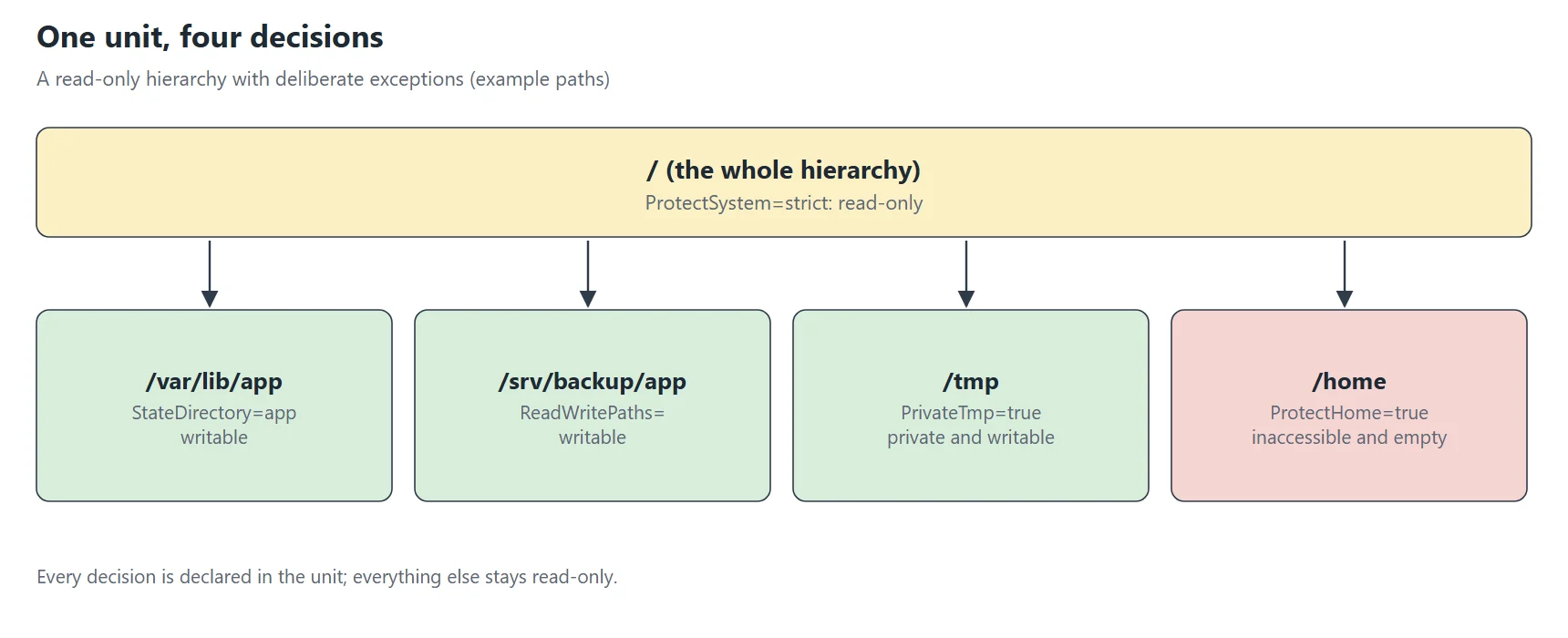
Every path that stays writable in this unit is a decision written in the file. That is the whole point of systemd filesystem protection: the unit documents what the service may touch.
Common mistakes
Most failures of systemd filesystem protection come from six mistakes. I made all of them at least once.
Mistake 1: a writable path that does not exist yet
The service fails to start with exit code 226. Create the directory first, use StateDirectory= or add the leading dash.
Mistake 2: ReadWritePaths under ProtectHome=yes
The exception is silently invisible. Use ProtectHome=read-only with the exact subdirectory, or tmpfs with BindPaths=.
Mistake 3: strict without PrivateTmp
/tmp becomes read-only and the program fails at its first temporary file. Add PrivateTmp=yes.
Mistake 4: trusting strict for home directories
On my bench /home and /root stayed writable under strict. Add ProtectHome= and measure.
Mistake 5: opening a whole parent directory
ReadWritePaths=/var opens far more than the service needs. Name the one subdirectory, or let a *Directory= setting create it.
Mistake 6: forgetting to restart
A reload does not change a running process. Restart the service, then test its real job and not only its start.
A checklist you can follow
Follow these steps each time you add systemd filesystem protection to a service.
- Run
systemctl cat UNITand note where the service writes today. - Add
ProtectSystem=strictandPrivateTmp=yesin a drop-in. - Add
ProtectHome=yes, orread-onlyif the service needs a path under/home. - Replace hand-made directories with
StateDirectory=,CacheDirectory=andLogsDirectory=. - Add
ReadWritePaths=for each remaining path, with a dash for optional ones. - Restart the service and exercise its real job, including backups and scheduled tasks.
- Read
journalctl -u UNITfor “Read-only file system” and repeat from step 5. - Keep the drop-in in version control, so the decision stays documented.
What I take away
Systemd filesystem protection is a list of decisions. Each writable path in the unit is one decision, and the unit documents it.
Close first, open later. strict plus a few exceptions is easier to review than a long list of bans.
Errors look different. “Read-only file system” and “No such file or directory” usually mean a sandbox rule, not a permission.
Exceptions need exact paths. The parent of a path does not open the path, and ProtectHome=yes cannot be reopened.
Let systemd create the directories. The *Directory= settings give the right owner and mode.
Do not trust a directive blindly. Several results here differ from what I expected: /home under strict, the owner of ConfigurationDirectory=, PrivateTmp=disconnected through systemd-run and RestrictFileSystems=. Measure on your own system.
Watch the quiet failures. A backup that cannot write fails without any alarm, as the 122-byte archives showed.
Sources
systemd.exec(5): freedesktop.org manual page
systemd-run(1): freedesktop.org manual page
systemctl(1): freedesktop.org manual page
journalctl(1): freedesktop.org manual page
My homelab notes: the Kavita, Navidrome, mktxp, Oxidized, Etherpad and mox entries of my wiki (private).
Earlier in this series
Systemd hardening, directive by directive: measuring with systemd-analyze security
Related articles
<a href=”https://hecate.neurozone.fr/?p=597″>How-to: install, configure and check a mail server with mox</a>
<a href=”https://hecate.neurozone.fr/?p=1485″>ZDI-CAN-33367: when an avoided copy writes into a read-only file</a>
<a href=”https://hecate.neurozone.fr/?p=599″>How-to: Suricata as an IPS with NFQUEUE, without breaking your server</a>