Systemd hardening, directive by directive: measuring with systemd-analyze security
Part 1 of a series on systemd hardening: read systemd-analyze security, build a drop-in, test one directive at a time and undo it, with a hands-on lab on a harmless service.
systemd-analyze security is the command I run before I change anything in a systemd unit. It gives each service an exposure score, lists the sandboxing options the unit does not use yet, and shows where to start. This first part covers the method: how drop-ins work, how to read systemd-analyze security, how to test a change without risk, and which services deserve attention first.
This is part 1 of a series of eight on systemd hardening: the next parts go through the directives one family at a time. For each directive, I explain what it does, which services of my stack it affects and what it can break, because that is what a real hardening decision needs. This first part stays on method, because every later part relies on it. You do not need any systemd experience, because each step comes with the full command, a comment on every line and a small lab on a harmless demo service.
Test bench. Every output in this article comes from a real run on Rocky Linux 10.2 with systemd 257, inside a WSL2 virtual machine (kernel 6.18.54.1-microsoft-standard-WSL2, running as root). SELinux is disabled there, so a few kernel features can differ from a normal server. I say so wherever it matters. When I cut lines from an output, I replace them with [...], and I mark commands I did not run as not tested.
Before you start
Read this short list first, because it keeps you from the classic mistake of hardening a production service on the first try.
A test machine. Use a virtual machine or a spare server that runs systemd, so a mistake never reaches production. I ran everything on Rocky Linux 10.2 only; the commands belong to systemd itself, so they should behave the same on other distributions, but I did not test them there.
A shell with sudo rights. Every command that changes the system starts with sudo, so you can see at a glance what modifies the machine.
A harmless service for your first attempts. The lab below creates a demo service named demo-hardening-sandbox.service, so you never touch a real one.
A way to undo everything. Each change lives in one drop-in file, and deleting that file undoes it. Then the lab ends with a clean-up step that removes every file it created.
A recent systemd. Several options of systemd-analyze security were added in version 250, so check yours with systemctl --version.
A short glossary
| Term | What it means here |
|---|---|
| Unit | A file that describes something systemd manages. A service unit ends in .service. |
| Service | A unit that runs a program: a daemon that stays up, or a command that runs once and exits. |
| Drop-in | A small .conf file in a .d directory that changes a unit without editing the original file. |
| Directive | One setting of a unit file, such as ProtectSystem=strict. |
| Sandboxing | The directives that restrict what a service can see and do. |
| Namespace | A kernel feature that gives a process its own view of the system, for example its own mount points. Several directives rely on it. |
| Capability | One slice of root’s powers, for example binding a low port, that the kernel can grant separately. |
| System call | A request from a program to the kernel, such as opening a file. |
| Exposure level | The score that systemd-analyze security computes for a unit. |
| Transient unit | A temporary unit that systemd-run creates on the fly; it disappears when it stops. |
At a glance
| Step | Command | What it tells you |
|---|---|---|
| Score every running service | systemd-analyze security | One line per loaded service with an exposure level |
| Detail one service | systemd-analyze security UNIT | Each setting, applied (✓) or not (✗), with its exposure |
| Check a file before deploying | systemd-analyze verify FILE and security --offline=true FILE | Syntax errors, then the offline review |
| Change one directive | systemctl edit UNIT | A drop-in file, reloaded when you save |
| Experiment without editing | systemd-run -p DIRECTIVE=VALUE ... | A temporary unit with the properties you choose |
| Read a failure | systemctl status UNIT and journalctl -u UNIT | The exit code, then the service’s own messages |
| Roll back | systemctl revert UNIT | Removes the drop-ins of the unit |
Why harden services with systemd
A service that has no sandboxing directive runs without any of those protections. The systemd.exec manual calls the sandboxing options an effective way to limit the exposure of the system, and it recommends turning on as many of them as possible without breaking the process. My demo service shows the starting point: with no sandboxing at all, systemd-analyze security rates it 9.6 and labels it UNSAFE, with 75 settings not applied and 4 applied (you will measure it yourself in the lab).
Sandboxing does not replace the other layers of defence. However, it adds one that costs nothing to install: a few lines in a drop-in. Two limits from the manual are worth remembering. First, many options are gracefully turned off on systems where the underlying mechanism is not available. Second, some sandboxing functionality is generally not available in user services.
How a unit and its drop-ins fit together
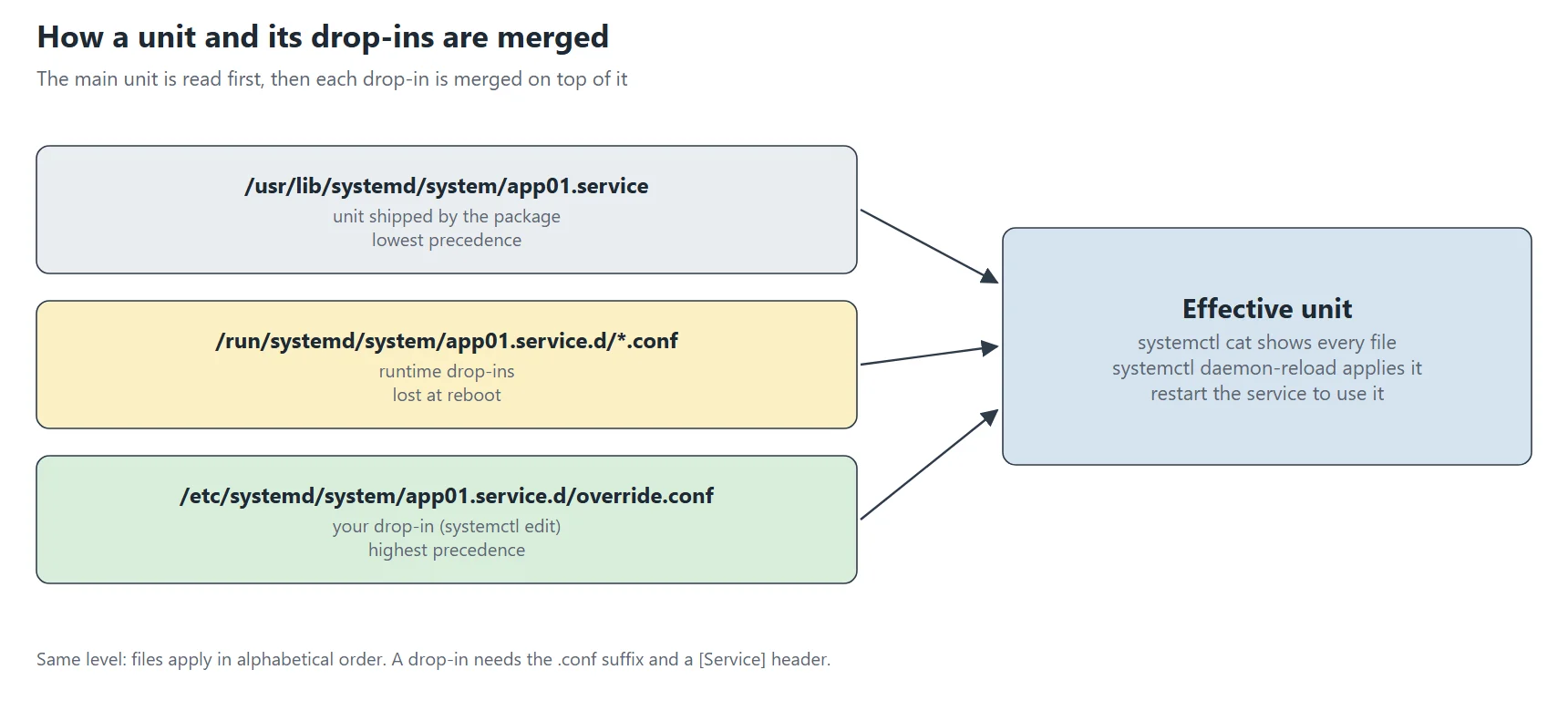
A drop-in is the safest way to change a service, because you never edit the file that a package installed. Instead, you add a small file next to it, and systemd merges the two. The diagram below shows which file wins.
Where drop-ins live and which one wins
For a unit named foo.service, systemd looks for a directory named foo.service.d/. It reads only the files that end in .conf, and it merges them in alphanumeric order after it has parsed the main unit file. Each drop-in must contain its own section header, for example [Service].
| Location | Role | Precedence |
|---|---|---|
/usr/lib/systemd/system/ | Units and drop-ins shipped by packages | Lowest |
/run/systemd/system/ | Runtime changes, lost at reboot | Middle |
/etc/systemd/system/ | Your own units and drop-ins | Highest |
The manual adds three rules. First, drop-ins in /etc/ win over those in /run/, which win over those in /usr/lib/. Second, drop-ins win over unit files wherever those live. Third, at the same level, files with different names apply in lexicographic order. That last rule is why I name my files with an obvious purpose, such as hardening.conf.
Create, check and undo a drop-in
The lab below runs the real commands in order, with their output: systemctl edit to create a drop-in, systemctl cat to see what systemd reads, systemctl show to see what it loaded, and systemctl revert to undo it. One point deserves attention here. systemctl edit reloads the configuration for you, and a reload keeps the runtime state. Therefore a service that is already running keeps its old sandbox until you restart it. Mistake 4 in the lab proves it.
Reading systemd-analyze security
The systemd-analyze security tool analyses the security and sandboxing settings of service units. It does not start anything. Instead, it reads the settings and compares them with the protections that systemd can apply.
One service or the whole system
Without a unit name, systemd-analyze security inspects all loaded, long-running services and prints a terse table, one line per unit. With one or more unit names, however, it prints a detailed analysis of each. Here is the whole-system table, cut after four lines:
systemd-analyze security --no-pager
UNIT                                 EXPOSURE PREDICATE HAPPY
NetworkManager.service                    7.8 EXPOSED   🙁
auditd.service                            9.4 UNSAFE    😨
cockpit-wsinstance-http.service           5.4 MEDIUM    😐
cockpit.service                           6.2 MEDIUM    😐
[...]
The columns are the unit, its exposure level, a label (the “predicate”) and a face. On the test bench I saw the labels MEDIUM, EXPOSED and UNSAFE, but the manual does not define them. So use the number, and treat the label as a quick visual cue.
The table, row by row
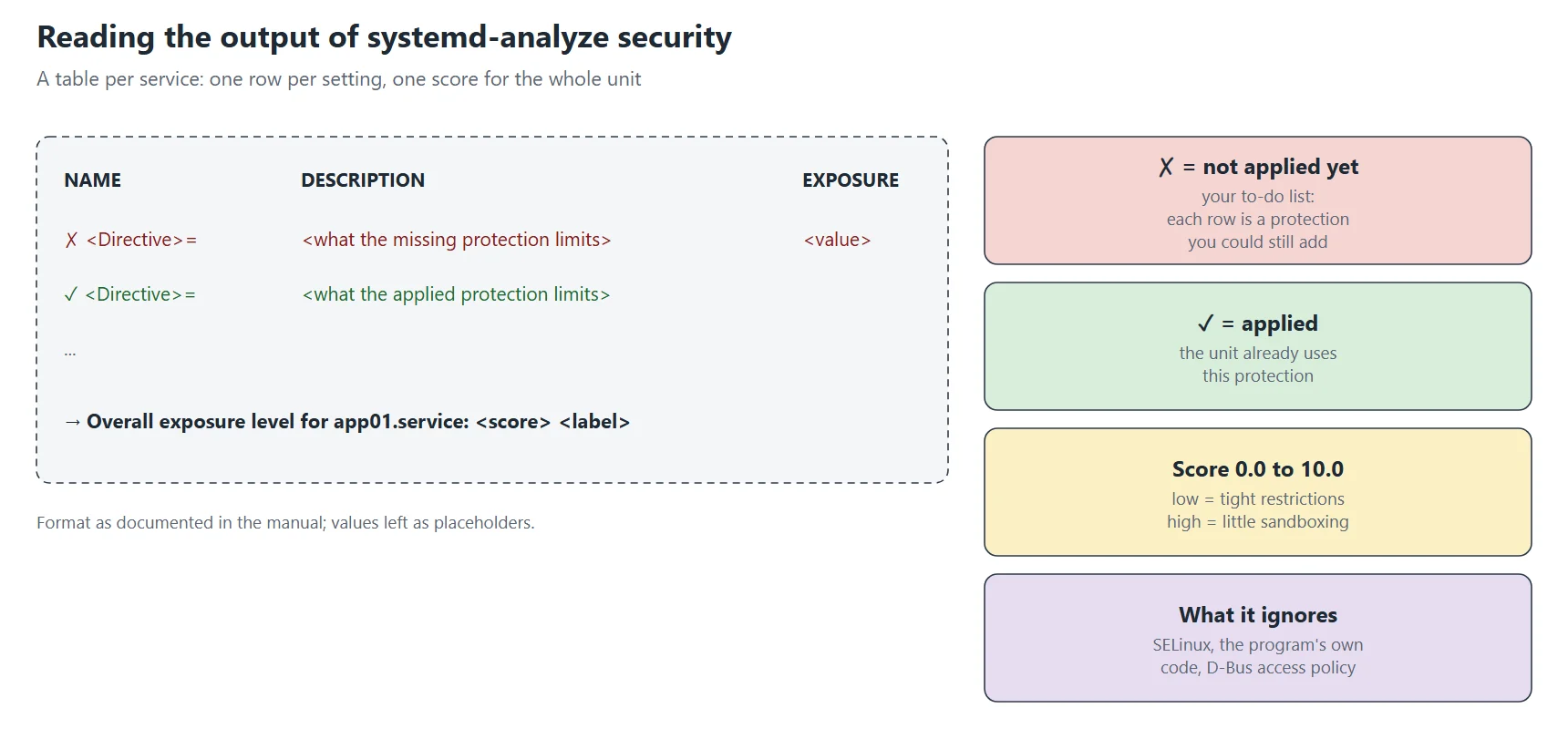
For one service, the output has three columns: NAME, DESCRIPTION and EXPOSURE. Each row starts with a mark, where ✗ means the setting is not applied and ✓ means it is. Finally, the last line gives the overall result. Here is the beginning of the table for the demo service of the lab, before any sandboxing:
systemd-analyze security --no-pager demo-hardening-sandbox.service | head -n 6
  NAME                                                        DESCRIPTION                                                             EXPOSURE
✗ RootDirectory=/RootImage=                                   Service runs within the host's root directory                                0.1
  SupplementaryGroups=                                        Service runs as root, option does not matter
  RemoveIPC=                                                  Service runs as root, option does not apply
✗ User=/DynamicUser=                                          Service runs as root user                                                    0.4
✗ CapabilityBoundingSet=~CAP_SYS_TIME                         Service processes may change the system clock                                0.2
Read it like a to-do list, because every ✗ row is a protection you could still add, and the number on the right says how much exposure it would remove. Rows without a mark and without a number do not apply to this unit: for instance, the tool tells you that RemoveIPC= does not matter when the service runs as root. To keep only the work left to do, filter the output:
systemd-analyze security --no-pager demo-hardening-sandbox.service | grep '✗' | head -n 4
✗ RootDirectory=/RootImage=                                   Service runs within the host's root directory                                0.1
✗ User=/DynamicUser=                                          Service runs as root user                                                    0.4
✗ CapabilityBoundingSet=~CAP_SYS_TIME                         Service processes may change the system clock                                0.2
✗ NoNewPrivileges=                                            Service processes may acquire new privileges                                 0.2
What the score means, and what it does not
The manual describes the overall exposure level as an estimation from 0.0 to 10.0. A high score means little sandboxing, and a low score means tight restrictions. Be careful with that number, because the manual is explicit about its limits:
It covers only the per-service security features that systemd itself implements, so it ignores what the program does to protect itself, and it ignores SELinux.
A high score does not mean the service is vulnerable, and a low score does not prove it is safe. Instead, it only says the service might benefit from more settings.
Many settings can be undone individually by other settings, but the tool accounts for some combinations only.
Settings apply to the service’s own operations, while requests sent over IPC, such as D-Bus, can reach services that are not restricted the same way, so you must check the IPC access policy separately.
In practice, treat the systemd-analyze security score as a compass, not as a goal. Indeed, it helps you find services with no protection at all, and it confirms that a change had the effect you wanted.
Options worth knowing
| Option | What it does | Tested here |
|---|---|---|
--offline=BOOL | Reviews unit files without asking the running manager (added in version 250) | Yes: works on a file path and on a unit name |
--threshold=NUMBER | Returns an error when the overall level exceeds the value (added in 250) | Yes: exit code 1 above the threshold, 0 below it |
--json=MODE | Prints the table as JSON: off, pretty or short | Yes: short |
--security-policy=PATH | Applies your own JSON requirements; a weight of 0 means “do not check” (added in 250) | Not tested |
--profile=PATH | With --offline, takes a portable profile into account (added in 250) | Not tested |
--no-pager | Prints directly instead of using a pager | Yes |
Here are the real results for the demo service once the lab drop-in is in place (its score is 8.9, as step 3 of the lab shows). I ran --threshold twice to check the exit code:
systemd-analyze security --offline=true --no-pager /etc/systemd/system/demo-hardening-sandbox.service | tail -n 1
systemd-analyze security --offline=true --no-pager demo-hardening-sandbox.service | tail -n 1
→ Overall exposure level for demo-hardening-sandbox.service: 8.9 EXPOSED 🙁
→ Overall exposure level for demo-hardening-sandbox.service: 8.9 EXPOSED 🙁
systemd-analyze security --threshold=3 --no-pager demo-hardening-sandbox.service | tail -n 1; echo "exit=${PIPESTATUS[0]}"
systemd-analyze security --threshold=100 --no-pager demo-hardening-sandbox.service | tail -n 1; echo "exit=${PIPESTATUS[0]}"
→ Overall exposure level for demo-hardening-sandbox.service: 8.9 EXPOSED 🙁
exit=1
→ Overall exposure level for demo-hardening-sandbox.service: 8.9 EXPOSED 🙁
exit=0
The JSON mode gives one object per row, with the fields set, name, json_field, description and exposure. Here are the first 330 characters:
systemd-analyze security --json=short --no-pager demo-hardening-sandbox.service | head -c 330
[{"set":false,"name":"RootDirectory=/RootImage=","json_field":"RootDirectoryOrRootImage","description":"Service runs within the host's root directory","exposure":"0.1"},{"set":null,"name":"SupplementaryGroups=","json_field":"SupplementaryGroups","description":"Service runs as root, option does not matter","exposure":null},{"set"
[...]
One detail deserves a warning. The manual says the overall level runs from 0.0 to 10.0, yet it documents a default threshold of 100, and it says --offline returns an error above that threshold. So the default never triggers. If you use --threshold in a script, pass an explicit value and test both sides of it, as I did above.
Check a unit before you deploy it
Two commands help you before a file goes into /etc/systemd/system/. systemd-analyze verify detects unknown sections and directives, missing dependencies, missing manual pages named in Documentation=, and commands in ExecStart= that are not found or not executable. Then the offline mode of systemd-analyze security (--offline=true) reviews the file without asking the running manager. Here is a clean run on the lab unit:
systemd-analyze verify /etc/systemd/system/demo-hardening-sandbox.service; echo "exit=$?"
exit=0
No output and exit code 0 mean that verify found nothing to report. However, the manual has no example for the offline review of a file path. It works on my test bench, but test it on a copy before you rely on it.
A safe hardening loop
Hardening goes wrong when you change five things at once and cannot tell which one broke the service. The loop below avoids that. It starts with systemd-analyze security, then it adds one directive at a time, and it ends with a test of the real job of the service.
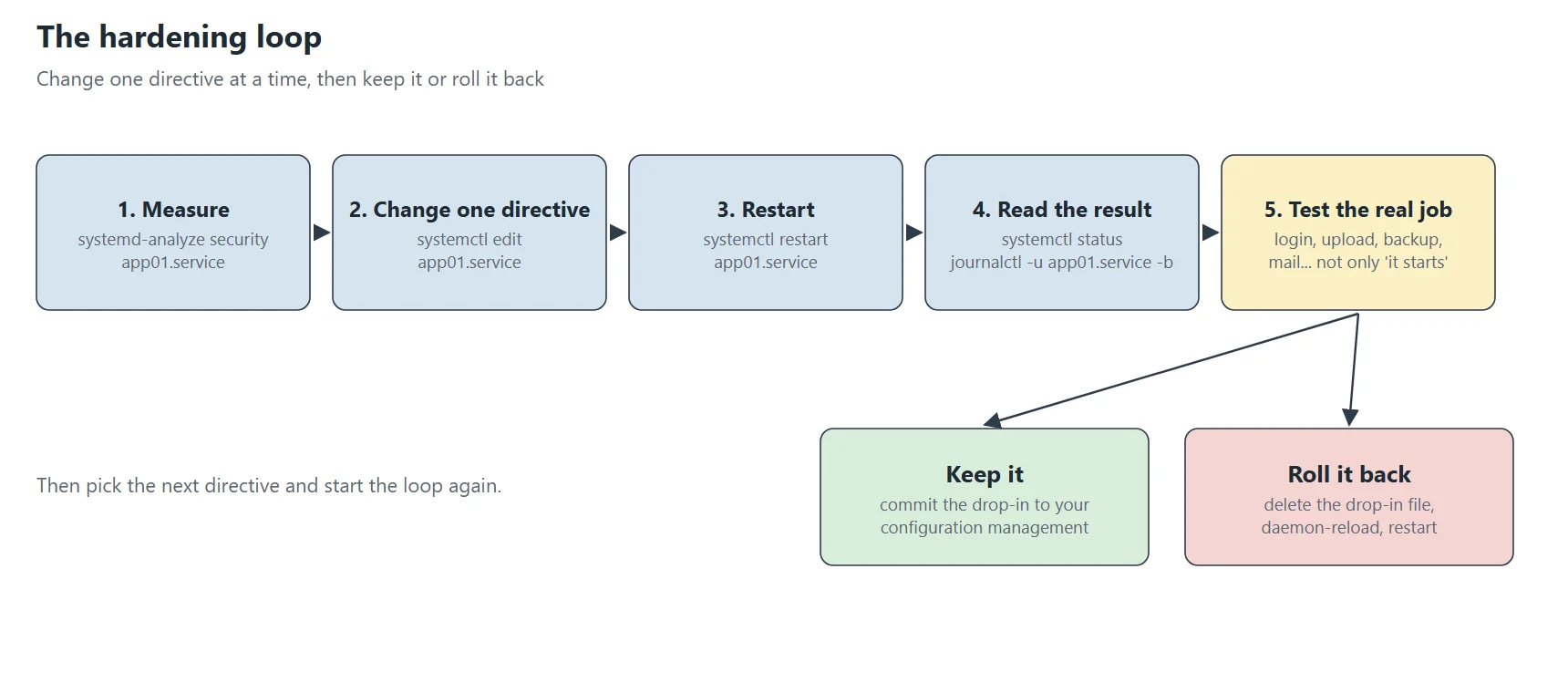
- Measure. Run
systemd-analyze security UNITand note the ✗ rows you plan to fix. - Change one directive in a drop-in with
sudo systemctl edit UNIT. - Restart with
sudo systemctl restart UNIT. A reload alone does not give a running service its new sandbox. - Read the result with
systemctl status UNITandjournalctl -u UNIT. - Test the real job: log in, upload a file, run the backup, send a mail. A service can start and still fail later.
- Keep or roll back. Keep the drop-in in your configuration management, or delete it, run
sudo systemctl daemon-reloadand restart.
The last two steps matter most. A sandbox can leave a service able to start while one of its jobs fails later, for example when it needs a path that is now read-only. That is why the loop ends with a test of the real job and not with a successful start.
Reading a failure
When a sandbox breaks a service, the exit code and the service’s own message tell you which directive to loosen. Here is a demo unit that runs with ProtectSystem=strict and tries to create a file in /etc. The status output is cut after the summary, because the journal lines that follow carry the name of my test machine:
sudo systemctl start demo-hardening-fail.service
systemctl status --no-pager -n 5 demo-hardening-fail.service
× demo-hardening-fail.service - Demo unit that the sandbox breaks (harmless)
     Loaded: loaded (/etc/systemd/system/demo-hardening-fail.service; static)
     Active: failed (Result: exit-code) since Mon 2026-11-02 14:54:40 CET; 35ms ago
 Invocation: 55376c422cb741a69786c3968cc455a2
    Process: 2008 ExecStart=/bin/touch /etc/demo-hardening-fail (code=exited, status=1/FAILURE)
   Main PID: 2008 (code=exited, status=1/FAILURE)
   Mem peak: 1.2M
        CPU: 5ms
[...]
Then the journal shows the message of the program itself. -u selects the unit, -o cat prints only the message, and -n 6 limits the number of lines:
journalctl -u demo-hardening-fail.service -o cat --no-pager -n 6
Starting demo-hardening-fail.service - Demo unit that the sandbox breaks (harmless)...
/bin/touch: cannot touch '/etc/demo-hardening-fail': Read-only file system
demo-hardening-fail.service: Main process exited, code=exited, status=1/FAILURE
demo-hardening-fail.service: Failed with result 'exit-code'.
Failed to start demo-hardening-fail.service - Demo unit that the sandbox breaks (harmless).
The message says Read-only file system, so the directive responsible is ProtectSystem=. The fix is to allow the path the program really needs with ReadWritePaths=, which part 2 of the series covers.
Hands-on lab: see three directives at work
This lab takes about fifteen minutes. It uses a demo service that only lists, tests and touches files, and it removes everything at the end. Every output below is a real one from the test bench, and lines that start with --- in the outputs are labels that my test script printed between commands.
Step 1: create the demo service and run it without a sandbox
Create the file /etc/systemd/system/demo-hardening-sandbox.service with your editor, for example sudo nano /etc/systemd/system/demo-hardening-sandbox.service. Lines that start with # are comments, and you should always put a comment on its own line, never after a setting.
# A harmless demo: it counts /home entries, tests a write in /etc and touches a file in /tmp.
[Unit]
Description=Sandbox demo service (harmless)

[Service]
# oneshot: systemd waits for the command to finish; the unit never stays "active".
Type=oneshot
# systemd does not run a shell by itself, so the command starts /bin/sh explicitly.
ExecStart=/bin/sh -c 'echo "home entries:"; ls -A /home | wc -l; touch /etc/demo-hardening-test && rm /etc/demo-hardening-test && echo "etc: write ok" || echo "etc: write refused"; touch /tmp/demo-hardening-marker; echo "done"'
Now tell systemd to read the new file, then show it, run the service and read its output. A oneshot service runs once, and systemctl start waits for it to finish:
sudo systemctl daemon-reload
systemctl cat demo-hardening-sandbox.service
sudo systemctl start demo-hardening-sandbox.service
journalctl -u demo-hardening-sandbox.service -o cat --no-pager
ls -l /tmp/demo-hardening-marker | awk '{print $1, $3, $NF}'
Starting demo-hardening-sandbox.service - Sandbox demo service (harmless)...
home entries:
1
etc: write ok
done
demo-hardening-sandbox.service: Deactivated successfully.
Finished demo-hardening-sandbox.service - Sandbox demo service (harmless).
-rw-r--r-- root /tmp/demo-hardening-marker
Read the result: the service saw one entry in /home, it could write in /etc, and it created its marker file in the real /tmp. So nothing is protected yet. Measure the starting point:
systemd-analyze security --no-pager demo-hardening-sandbox.service | tail -n 1
systemd-analyze security --no-pager demo-hardening-sandbox.service | grep -c '✗'
systemd-analyze security --no-pager demo-hardening-sandbox.service | grep -c '✓'
→ Overall exposure level for demo-hardening-sandbox.service: 9.6 UNSAFE 😨
75
4
Finally, look at the three rows that the next step will fix:
systemd-analyze security --no-pager demo-hardening-sandbox.service | grep -E 'ProtectSystem|ProtectHome|PrivateTmp'
✗ ProtectSystem=                                              Service has full access to the OS file hierarchy                             0.2
✗ ProtectHome=                                                Service has full access to home directories                                  0.2
✗ PrivateTmp=                                                 Service has access to other software's temporary files                       0.2
Step 2: add the drop-in
The normal way is the interactive editor: sudo systemctl edit demo-hardening-sandbox.service opens a new file named override.conf (not tested here, because it needs a terminal). To keep the lab reproducible, use the non-interactive form. --stdin reads the content from standard input, and --drop-in=hardening chooses the file name:
sudo systemctl edit --stdin --drop-in=hardening demo-hardening-sandbox.service <<'EOF'
[Service]
# The whole file system becomes read-only for this service (except /dev, /proc and /sys).
ProtectSystem=strict
# /home, /root and /run/user become inaccessible and empty.
ProtectHome=true
# /tmp and /var/tmp become private to this service and are removed when it stops.
PrivateTmp=true
EOF
Each line of that file does one thing. First, [Service] is the required section header. Then ProtectSystem=strict mounts the whole file system hierarchy read-only, except /dev, /proc and /sys. Also, ProtectHome=true makes /home, /root and /run/user inaccessible and empty. Finally, PrivateTmp=true gives the service its own /tmp and /var/tmp, removed when it stops. Systemd answers with the path of the new file:
Successfully installed edited file '/etc/systemd/system/demo-hardening-sandbox.service.d/hardening.conf'.
Now check what systemd reads and what it loaded. The output of systemctl cat starts with the main unit file, so I cut that part:
systemctl cat demo-hardening-sandbox.service
systemctl show --property=ProtectSystem --property=ProtectHome --property=PrivateTmp demo-hardening-sandbox.service
[...]
# /etc/systemd/system/demo-hardening-sandbox.service.d/hardening.conf
[Service]
# The whole file system becomes read-only for this service (except /dev, /proc and /sys).
ProtectSystem=strict
# /home, /root and /run/user become inaccessible and empty.
ProtectHome=true
# /tmp and /var/tmp become private to this service and are removed when it stops.
PrivateTmp=true
PrivateTmp=yes
ProtectHome=yes
ProtectSystem=strict
systemctl show prints yes where the file says true, because both mean the same boolean. The three last lines are the values that systemd loaded, and the three before them are the file.
Then run the service again and compare with step 1:
rm -f /tmp/demo-hardening-marker
sudo systemctl start demo-hardening-sandbox.service
journalctl -u demo-hardening-sandbox.service -n 7 -o cat --no-pager
ls -l /tmp/demo-hardening-marker
home entries:
0
touch: cannot touch '/etc/demo-hardening-test': Read-only file system
etc: write refused
done
demo-hardening-sandbox.service: Deactivated successfully.
Finished demo-hardening-sandbox.service - Sandbox demo service (harmless).
ls: cannot access '/tmp/demo-hardening-marker': No such file or directory
Three things changed, and they match the manual. First, the service now sees 0 entries in /home. Second, its write in /etc fails with Read-only file system. Third, the marker file it created is not visible from the host, because the service used a private /tmp.
Step 3: measure again
systemd-analyze security --no-pager demo-hardening-sandbox.service | tail -n 1
systemd-analyze security --no-pager demo-hardening-sandbox.service | grep -E 'ProtectSystem|ProtectHome|PrivateTmp'
→ Overall exposure level for demo-hardening-sandbox.service: 8.9 EXPOSED 🙁
✓ ProtectSystem=                                              Service has strict read-only access to the OS file hierarchy
✓ PrivateTmp=                                                 Service has no access to other software's temporary files
✓ ProtectHome=                                                Service has no access to home directories
The systemd-analyze security score fell from 9.6 UNSAFE to 8.9 EXPOSED, the three rows turned from ✗ to ✓, and the counts moved from 75 not applied and 4 applied to 71 and 8. Three directives gave a modest gain, which is normal: a root service keeps many other exposures, such as the user it runs as and its capabilities. Parts 3 and 4 of the series address those.
Step 4: try one directive at a time with systemd-run
systemd-run starts a command as a transient unit, and -p sets a property in the same format as systemctl set-property. The options below are the documented ones: --quiet hides the start message, --pipe connects the command to your terminal’s input and output, --wait waits for the end and --collect unloads the unit afterwards, even after a failure. (The manual also documents -t for an interactive shell; I did not test it.) The manual has no sandboxing example for systemd-run, so the results below are my own tests. The echo lines print the labels that you see in the output, and each ls checks the real file system afterwards:
RUN="sudo systemd-run --quiet --pipe --wait --collect"
echo "--- no sandbox: write to /etc"; $RUN /bin/touch /etc/demo-hardening-t1; echo "exit=$?"; ls /etc/demo-hardening-t1; rm -f /etc/demo-hardening-t1
echo "--- ProtectSystem=strict: write to /etc"; $RUN -p ProtectSystem=strict /bin/touch /etc/demo-hardening-t2; echo "exit=$?"; ls /etc/demo-hardening-t2 2>&1
echo "--- ProtectSystem=true: write to /etc, then to /usr"
$RUN -p ProtectSystem=true /bin/touch /etc/demo-hardening-t3; echo "etc exit=$?"; ls /etc/demo-hardening-t3; rm -f /etc/demo-hardening-t3
$RUN -p ProtectSystem=true /bin/touch /usr/demo-hardening-t4; echo "usr exit=$?"; ls /usr/demo-hardening-t4 2>&1
echo "--- ProtectSystem=full: write to /etc"; $RUN -p ProtectSystem=full /bin/touch /etc/demo-hardening-t5; echo "exit=$?"; ls /etc/demo-hardening-t5 2>&1
echo "--- /home entries seen by the service, without and with ProtectHome=true"
$RUN /bin/sh -c 'ls -A /home | wc -l'
$RUN -p ProtectHome=true /bin/sh -c 'ls -A /home | wc -l'
echo "--- ProtectHome=true: ls -ld /home inside the service"; $RUN -p ProtectHome=true /bin/ls -ld /home | awk '{print $1, $3, $4}'
echo "--- PrivateTmp=true: file created in /tmp by the service, seen from the host?"
rm -f /tmp/demo-hardening-t6
$RUN -p PrivateTmp=true /bin/touch /tmp/demo-hardening-t6; echo "service exit=$?"; ls /tmp/demo-hardening-t6 2>&1
echo "--- without PrivateTmp, same test"
$RUN /bin/touch /tmp/demo-hardening-t7; echo "service exit=$?"; ls /tmp/demo-hardening-t7 2>&1; rm -f /tmp/demo-hardening-t7
--- no sandbox: write to /etc
exit=0
/etc/demo-hardening-t1
--- ProtectSystem=strict: write to /etc
/bin/touch: cannot touch '/etc/demo-hardening-t2': Read-only file system
exit=1
ls: cannot access '/etc/demo-hardening-t2': No such file or directory
--- ProtectSystem=true: write to /etc, then to /usr
etc exit=0
/etc/demo-hardening-t3
/bin/touch: cannot touch '/usr/demo-hardening-t4': Read-only file system
usr exit=1
ls: cannot access '/usr/demo-hardening-t4': No such file or directory
--- ProtectSystem=full: write to /etc
/bin/touch: cannot touch '/etc/demo-hardening-t5': Read-only file system
exit=1
ls: cannot access '/etc/demo-hardening-t5': No such file or directory
--- /home entries seen by the service, without and with ProtectHome=true
1
0
--- ProtectHome=true: ls -ld /home inside the service
d--------- root root
--- PrivateTmp=true: file created in /tmp by the service, seen from the host?
service exit=0
ls: cannot access '/tmp/demo-hardening-t6': No such file or directory
--- without PrivateTmp, same test
service exit=0
/tmp/demo-hardening-t7
This table reads the results the way the manual describes them:
| Directive | What my test showed | Manual |
|---|---|---|
ProtectSystem=true | Write to /etc works, write to /usr is refused | /usr and the boot loader directories read-only |
ProtectSystem=full | Write to /etc is refused | /etc read-only as well |
ProtectSystem=strict | Write to /etc is refused | The whole hierarchy read-only, except /dev, /proc, /sys |
ProtectHome=true | 0 entries seen, and /home shows mode d--------- | Directories inaccessible and empty |
PrivateTmp=true | The file created by the service is absent on the host | /tmp and /var/tmp not shared with processes outside |
These results confirm the manual on my test bench. They come from a WSL2 kernel, so confirm them on your own server before you rely on a directive in production.
Step 5: undo and clean up
systemctl revert removes the drop-ins of a unit. It leaves a unit file that has no vendor version, such as our demo file. Then delete the demo files and tell systemd:
sudo systemctl revert demo-hardening-sandbox.service
sudo rm -f /etc/systemd/system/demo-hardening-sandbox.service
sudo rm -f /tmp/demo-hardening-marker
sudo systemctl daemon-reload
Removed '/etc/systemd/system/demo-hardening-sandbox.service.d/hardening.conf'.
Removed '/etc/systemd/system/demo-hardening-sandbox.service.d'.
The first command printed the two lines above. After the revert, the unit file stayed and the .d directory was gone. After the clean-up, I checked that no demo unit, no file in /tmp, /etc or /usr, and no loaded demo unit remained (all counts were 0).
Common mistakes
Each mistake below happened on the test bench, with the real message. I reproduced them on a throwaway unit named demo-hardening-mistakes.service (a oneshot service that runs /bin/true) and on a sleep service, then deleted both.
Mistake 1: a drop-in without a section header
The drop-in a-no-header.conf contained only ProtectSystem=strict. systemd ignored the line, and the loaded value stayed no:
systemctl show --property=ProtectSystem demo-hardening-mistakes.service
journalctl -b -o cat --no-pager --since "-1min" | grep -i a-no-header | sort -u
ProtectSystem=no
/etc/systemd/system/demo-hardening-mistakes.service.d/a-no-header.conf:1: Assignment outside of section. Ignoring.
Mistake 2: a drop-in without the .conf suffix
A file named b-wrong-suffix.txt is never read. systemctl cat lists only the main file, and the value stays no:
systemctl cat demo-hardening-mistakes.service | grep '^#'
systemctl show --property=ProtectSystem demo-hardening-mistakes.service
# /etc/systemd/system/demo-hardening-mistakes.service
ProtectSystem=no
Mistake 3: a comment on the same line as a setting
I wrote ProtectSystem=strict # make everything read-only on one line. systemd read the whole text as the value, rejected it and kept the default:
systemctl show --property=ProtectSystem demo-hardening-mistakes.service
journalctl -b -o cat --no-pager --since "-1min" | grep -i c-inline-comment | sort -u
ProtectSystem=no
/etc/systemd/system/demo-hardening-mistakes.service.d/c-inline-comment.conf:2: Failed to parse ProtectSystem=strict # make everything read-only, ignoring: Invalid argument
Mistake 4: a reload without a restart
A sleep service was already running. I added ProtectSystem=strict and ran daemon-reload. systemctl show reported strict, but the process kept the same PID and the same mount namespace as PID 1. Only the restart gave it a new PID and its own namespace:
PID=$(systemctl show --property=MainPID --value demo-hardening-sleep.service)
readlink /proc/1/ns/mnt
readlink /proc/$PID/ns/mnt
I ran those three lines before the change, after the reload and after the restart. The labelled results are:
--- mount namespace of PID 1 and of the service
pid1:    mnt:[4026532218]
service: mnt:[4026532218]
--- after drop-in + daemon-reload (no restart)
show ProtectSystem: strict
same PID: 1886 (was 1886)
service: mnt:[4026532218]
--- after systemctl restart
new PID: 1948
pid1:    mnt:[4026532218]
service: mnt:[4026532287]
Other mistakes to avoid
Editing the packaged file in /usr/lib/systemd/system/. Use a drop-in in /etc/systemd/system/ instead; the manual gives /etc/ precedence over /usr/lib/.
Judging a change by “the service starts”. Test the real job, as in the loop above.
Changing several directives at once. Otherwise, you will not know which one broke the service.
Chasing a score of 0. The manual says a high score does not mean a vulnerable service. Use the systemd-analyze security score to prioritise.
Using mount-namespace directives in a user service. The manual warns that some sandboxing functionality is generally not available in user services.
A checklist you can follow
- Work on a test machine or a harmless service first.
- Run
systemd-analyze security UNITand note the score and the ✗ rows. - Write one directive in a drop-in under
/etc/systemd/system/UNIT.d/, in a.conffile with a[Service]header and comments on their own lines. - Run
systemctl cat UNITto check that systemd reads your file. - Run
sudo systemctl restart UNIT; a reload alone is not enough for a running service. - Read
systemctl status UNITandjournalctl -u UNIT. - Test the real job of the service, not only its start.
- Measure again with
systemd-analyze security UNIT. - Keep the drop-in in your configuration management, or remove it with
systemctl revertand restart. - Repeat with the next directive.
The directive families of the next parts
The next parts take each family in turn. Every directive name below is documented in the systemd.exec manual page; IPAddressAllow= and IPAddressDeny= are documented in systemd.resource-control.
| Part | Family | Directives covered | Question it answers |
|---|---|---|---|
| 2 | Filesystem | ProtectSystem, ProtectHome, PrivateTmp, ReadWritePaths, ReadOnlyPaths, InaccessiblePaths, TemporaryFileSystem, BindPaths | What may the service read and write? |
| 3 | Privileges | NoNewPrivileges, User, DynamicUser, CapabilityBoundingSet, AmbientCapabilities, SecureBits, RestrictSUIDSGID | What can the process become? |
| 4 | Kernel and devices | ProtectKernelTunables, ProtectKernelModules, ProtectKernelLogs, ProtectClock, ProtectControlGroups, PrivateDevices, ProtectProc, ProcSubset | What can it change in the kernel? |
| 5 | Namespaces and network | PrivateNetwork, PrivateUsers, RestrictNamespaces, RestrictAddressFamilies, IPAddressAllow, IPAddressDeny | Who can it talk to? |
| 6 | System calls | SystemCallFilter, SystemCallArchitectures, SystemCallErrorNumber | Which requests may it send to the kernel? |
| 7 | Memory and miscellaneous | MemoryDenyWriteExecute, LockPersonality, RestrictRealtime, UMask, ProtectHostname, RemoveIPC, KeyringMode | What odd tricks can it still use? |
| 8 | The whole stack | A matrix of every directive against every service | What do I apply where? |
My stack, and where to start
Hardening needs a threat model, even a simple one. For this reason, I assume that an attacker has already taken control of one service process, and I ask what that process could do next: read secrets, write a persistence mechanism, reach other services, or gain more privileges. Then each directive removes one of those options.
My servers run a typical self-hosted stack, which the later parts will cover service by service:
a reverse proxy in front of every public application, with its CrowdSec bouncer;
PHP-FPM applications, plus Node.js, Python, Go and .NET applications (a media server and a library server);
MariaDB, PostgreSQL and Valkey, with pgBackRest for PostgreSQL backups;
a mail server, an SFTP and WebDAV server, and a team chat;
security and monitoring agents: a SIEM agent, brute-force protection, an IDS, and metric exporters;
a VPN and a web administration console.
I start with the services that combine three criteria: they are reachable from the Internet, directly or behind the reverse proxy; third parties wrote them; and they have no SELinux policy of their own. Those are the web applications. The databases and the agents come after, because the network cannot reach them directly.
What I take away
Measure before you change. systemd-analyze security gives a score and a to-do list, and it needs no change to the service.
Use drop-ins. They survive package updates better than edits to the packaged file, and deleting one is also the rollback.
Restart after a change. Otherwise, a running process stays in its old sandbox.
Change one directive at a time and test the real job of the service.
Treat the score as a compass. It is only a compass because it counts only what systemd itself restricts.
Test the claims. Every result in this article comes from a real run, so run the lab yourself and compare.
Sources
systemd-analyze(1): freedesktop.org manual page
systemd.unit(5): freedesktop.org manual page
systemd.exec(5): freedesktop.org manual page
systemd.service(5): freedesktop.org manual page
systemd.resource-control(5): freedesktop.org manual page
systemctl(1): freedesktop.org manual page
systemd-run(1): freedesktop.org manual page
journalctl(1): freedesktop.org manual page
Related articles
Under the hood of the October 2026 flaws: one byte too many, a forgotten pointer, a shared page
ZDI-CAN-33367: when an avoided copy writes into a read-only file
CrowdSec 1.8 on Debian: leaving the distro package, the postinst trap and a protection checklist