How-to: update Pi-hole safely and test that it still blocks
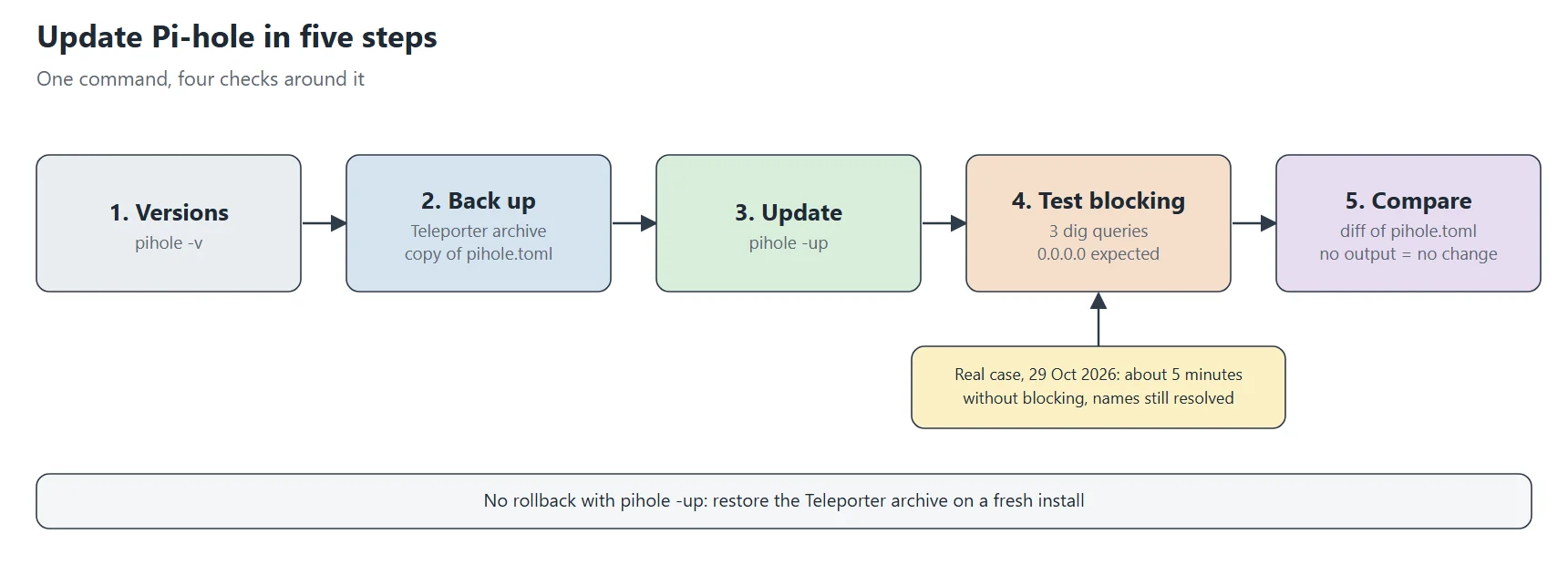
Update Pi-hole in six steps: back up with Teleporter, run pihole -up, then test that blocking still works. The commands I use on my home network.
To update Pi-hole on my home network, I run a single command, but I never trust it alone. In this how-to, I update Pi-hole in six steps. The step that matters most tests that blocking still works, not only that names still resolve.
Quick answer — update Pi-hole and prove that it still blocks.
pihole -v                                   # versions before
pihole-FTL --teleporter                     # back up the configuration
PIHOLE_SKIP_OS_CHECK=true pihole -up        # update
dig +short doubleclick.net @192.0.2.19      # must print 0.0.0.0 (blocked)
Details, explanations and checks follow below.
My Pi-hole runs on a Raspberry Pi with Debian 12 and serves as the only DNS server of the house. Because of that, every restart of the DNS service is a small outage. My Ansible role does not manage Pi-hole versions, so I update by hand. I send the commands through an Ansible ad-hoc command from my control machine, but below I show the commands themselves.
Before you start
A shell on the Pi-hole host with root rights.
The address of your Pi-hole and of your router. In this article, they are 192.0.2.19 and 192.0.2.1.
A few free minutes. In my notes, the LAN DNS restarts for a few seconds, and ad blocking can stop for about five minutes (see step 4).
Pi-hole’s release notes. The official update page asks you to read them for every component before you update, especially for a major version.
How to update Pi-hole, step by step
Step 1: check the versions
First, I list what I run now. The output gives the Core, Web and FTL versions.
pihole -v
Step 2: back up the configuration
Then I back up twice: with Teleporter, Pi-hole’s own export, and with a plain copy of the TOML file. I work in a dated folder, so both stay together.
mkdir -p /root/pre-update-$(date +%Y%m%d) && cd $_   # a dated folder, then enter it
pihole-FTL --teleporter                                # the Teleporter archive
cp -a /etc/pihole/pihole.toml pihole.toml.bak          # a copy of the configuration file
ls -la                                                 # check that both are here
The copy of the TOML file matters again in step 5.
Step 3: run the update
Now comes the update itself. I keep the last 20 lines of its output, print the versions again, and ask systemd whether the DNS service runs.
PIHOLE_SKIP_OS_CHECK=true pihole -up 2>&1 | tail -20   # update, keep the last 20 lines
pihole -v                                              # versions after the update
systemctl is-active pihole-FTL                         # must print: active
My notes use PIHOLE_SKIP_OS_CHECK=true, which skips the installer’s check of the operating system. Pi-hole’s update page does not mention it, so test it on your own system before you copy it.
Step 4: test blocking, not only resolution
This step is mandatory for me. On 29 October 2026, FTL, Pi-hole’s DNS engine, raced the swap of the gravity database. The log showed no such table: main.gravity in /var/log/pihole/FTL.log, and Pi-hole blocked nothing for about five minutes. It stopped only when FTL logged its own message: Gravity database has been replaced, reloading now.
During those minutes, names still resolved. So a simple check of resolution would have told me that everything was fine.
dig +short doubleclick.net @192.0.2.19   # must print 0.0.0.0 (blocked)
dig +short example.com @192.0.2.19       # must print a real address
dig +short doubleclick.net @192.0.2.1    # through the router: must print 0.0.0.0 too
The third query goes through the router. In my network, the router forwards its queries to Pi-hole, so a blocked answer there proves the whole path.
If blocking does not work after five minutes, I reload the DNS configuration and then read the FTL log.
pihole reloaddns
Step 5: check that the configuration did not change
An update can touch the configuration. So I compare my backup with the live file, and I leave out the comments and the lines that hold password hashes.
diff <(grep -vE '^\s*#|pwhash|password|totp' /root/pre-update-*/pihole.toml.bak) \
     <(grep -vE '^\s*#|pwhash|password|totp' /etc/pihole/pihole.toml)
No output means no difference.
Step 6: sync the admin password if it changed
If the admin password changed for any reason, I update my secrets manager the same day. In August 2026, I forgot once, and every deployment of my Ansible role broke until I fixed it.
Check that it worked
pihole -v shows the new versions.
systemctl is-active pihole-FTL prints active.
The first and third dig queries print 0.0.0.0, and the second prints a real address.
The diff prints nothing.
If something goes wrong
Blocking does not work after five minutes: run pihole reloaddns, then read /var/log/pihole/FTL.log.
You want to go back: pihole -up cannot reinstall a previous version. Instead, restore the Teleporter archive on a fresh install with pihole-FTL --teleporter <zip>.
What I take away
I back up twice before I update Pi-hole, because there is no rollback.
I test blocking, because resolution alone hid a five-minute gap.
I compare the configuration, because I want to know what the update changed.
Sources
Pi-hole documentation: FTL configuration (pihole-FTL –config)
My own runbook for this procedure, last run on 29 October 2026.
Related articles
How-to: install and configure WireGuard between a server and home
CrowdSec 1.8 on Debian: leaving the distro package, the postinst trap and a protection checklist
How-to: the MariaDB settings that really matter, and how to check them