Inside database data files (1/3): InnoDB, from MySQL to MariaDB

A relational database gives the illusion of tables, rows and columns. On disk there are only files cut into fixed-size blocks. Understanding how those blocks are organised explains a lot of behaviour that looks mysterious: why a file doesn’t shrink after a DELETE, why a UUID primary key slows inserts down, why a secondary index costs more than you’d think, or what the “doublewrite buffer” actually protects.

This three-part series opens the hood of three engines: InnoDB (the storage engine of MySQL and MariaDB), PostgreSQL and Oracle. The same thread runs through them: files, pages, rows, and where old versions of the data live. First stop: InnoDB.

The data directory
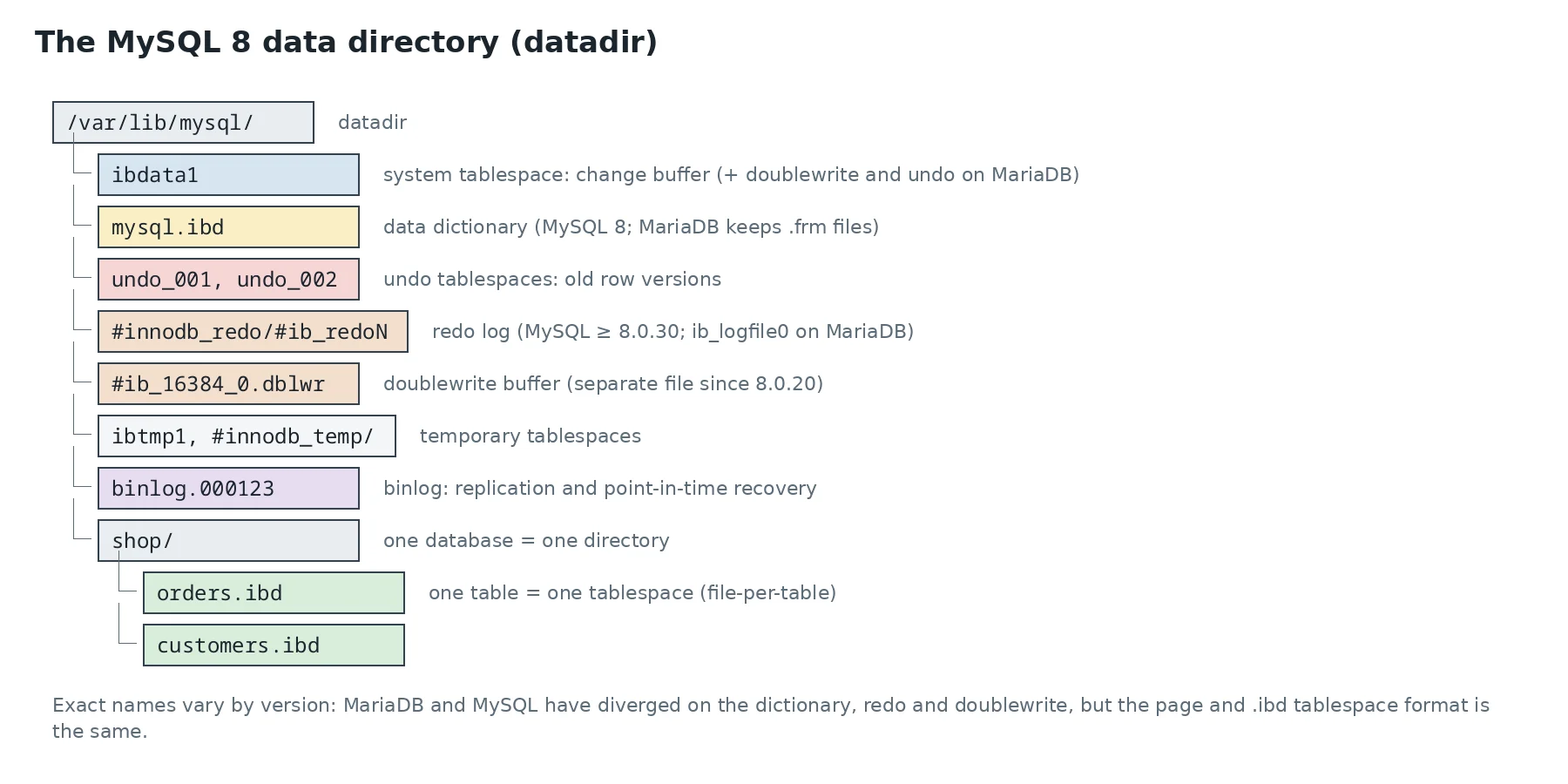
MySQL 8 datadir tree
The files of a MySQL 8 instance and their MariaDB equivalents.

Each file has a specific job:

  • ibdata1, the system tablespace. Historically it held everything: tables, indexes, undo, dictionary. Today it only keeps the change buffer (on MySQL) and, on MariaDB, the doublewrite and sometimes undo. It never shrinks: a 50 GB ibdata1 bloated by an old transaction stays that way, and the only way to reduce it is a full export and re-import;
  • one .ibd file per table, thanks to innodb_file_per_table=ON (the default since MySQL 5.6). That’s what lets you reclaim the space of a dropped or truncated table (DROP, TRUNCATE), move a single table, or restore a single tablespace;
  • undo tablespaces (undo_001…): before-images of modified rows, for ROLLBACK and for other transactions’ consistent reads;
  • the redo log: every page change is described there before the page itself is written to disk. After a crash, InnoDB replays it;
  • the doublewrite buffer, explained below;
  • binlogs, which belong to the server, not InnoDB: they describe changes at SQL level, for replication and point-in-time recovery.

An SQL database (CREATE DATABASE shop) is nothing but a directory. The exact global file names vary: MySQL and MariaDB diverged on the dictionary (MySQL 8 replaced .frm files with a transactional dictionary in mysql.ibd; MariaDB kept the .frm files), on redo and on doublewrite. The internal page format is shared. To see an instance’s tablespaces:

-- MySQL 8
SELECT name, file_size, allocated_size FROM information_schema.INNODB_TABLESPACES;
-- MariaDB
SELECT name, file_size, allocated_size FROM information_schema.INNODB_SYS_TABLESPACES;

Pages, extents, segments
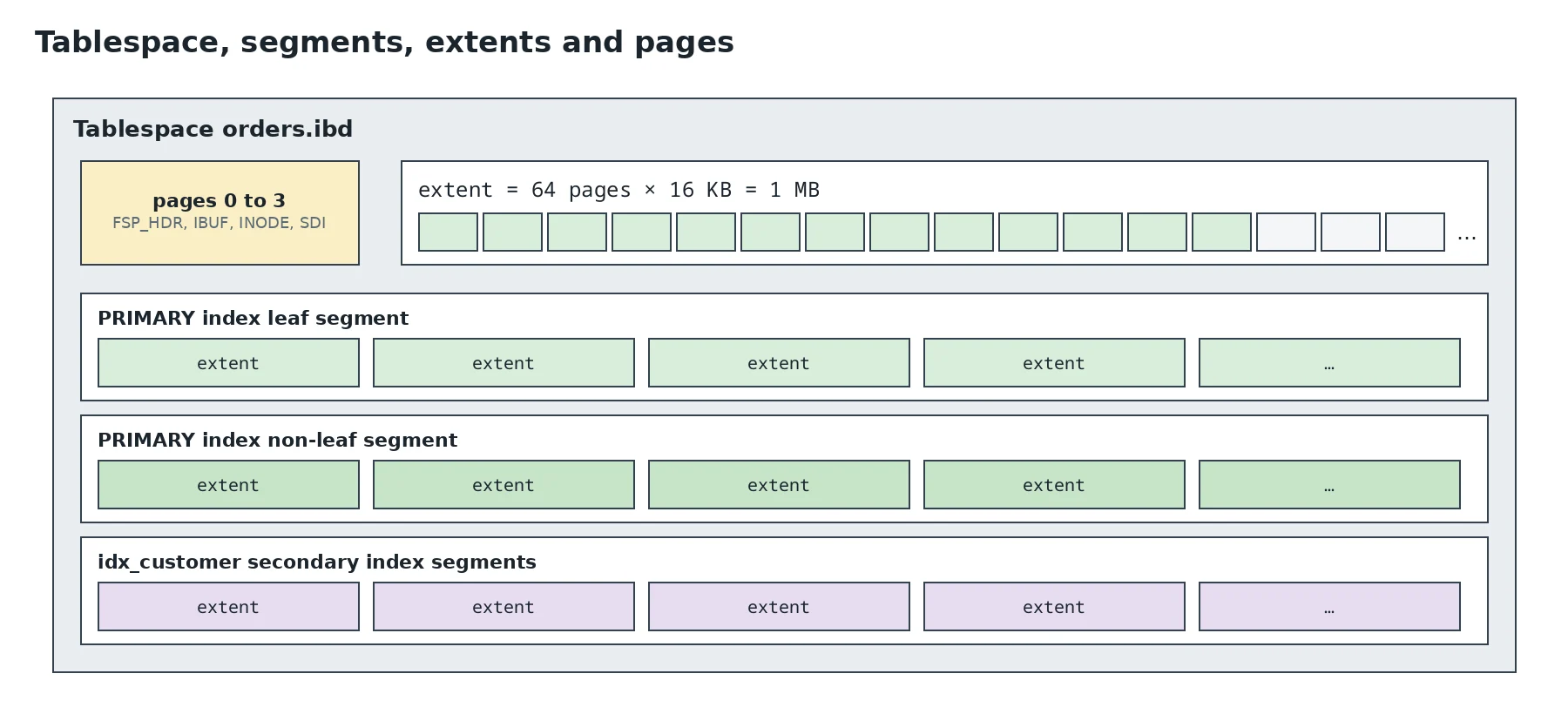
Tablespace, segment, extent and page hierarchy
A tablespace is cut into 16 KB pages, grouped into 1 MB extents, assigned to each index’s segments.

The basic unit is the page, 16 KB by default. Its size (innodb_page_size) is fixed when the instance is created and can’t change afterwards. Everything InnoDB reads or writes, it reads or writes as whole pages: reading a 100-byte row means loading 16 KB into memory, into the buffer pool.

Pages are grouped into extents of 64 pages, i.e. 1 MB. Allocating by extent rather than page by page keeps one index’s pages physically close, which makes sequential reads efficient.

Each index has two segments: one for its leaf pages, one for its internal pages. Separating them keeps the leaves (where the data is) contiguous, for range scans. So as not to reserve 1 MB for every small table, a segment first gets up to 32 individual pages, and only moves to full extents after that. That’s why an empty table takes a hundred kilobytes or so, not several megabytes.

The first pages of an .ibd are reserved for space management: page 0 (FSP_HDR) describes the state of extents, page 1 the change-buffer bitmap, page 2 the segment “inodes”. On MySQL 8, page 3 holds the table description as JSON (SDI) and the clustered index root is page 4. On MariaDB, which keeps .frm files, the root is page 3.

Anatomy of a page
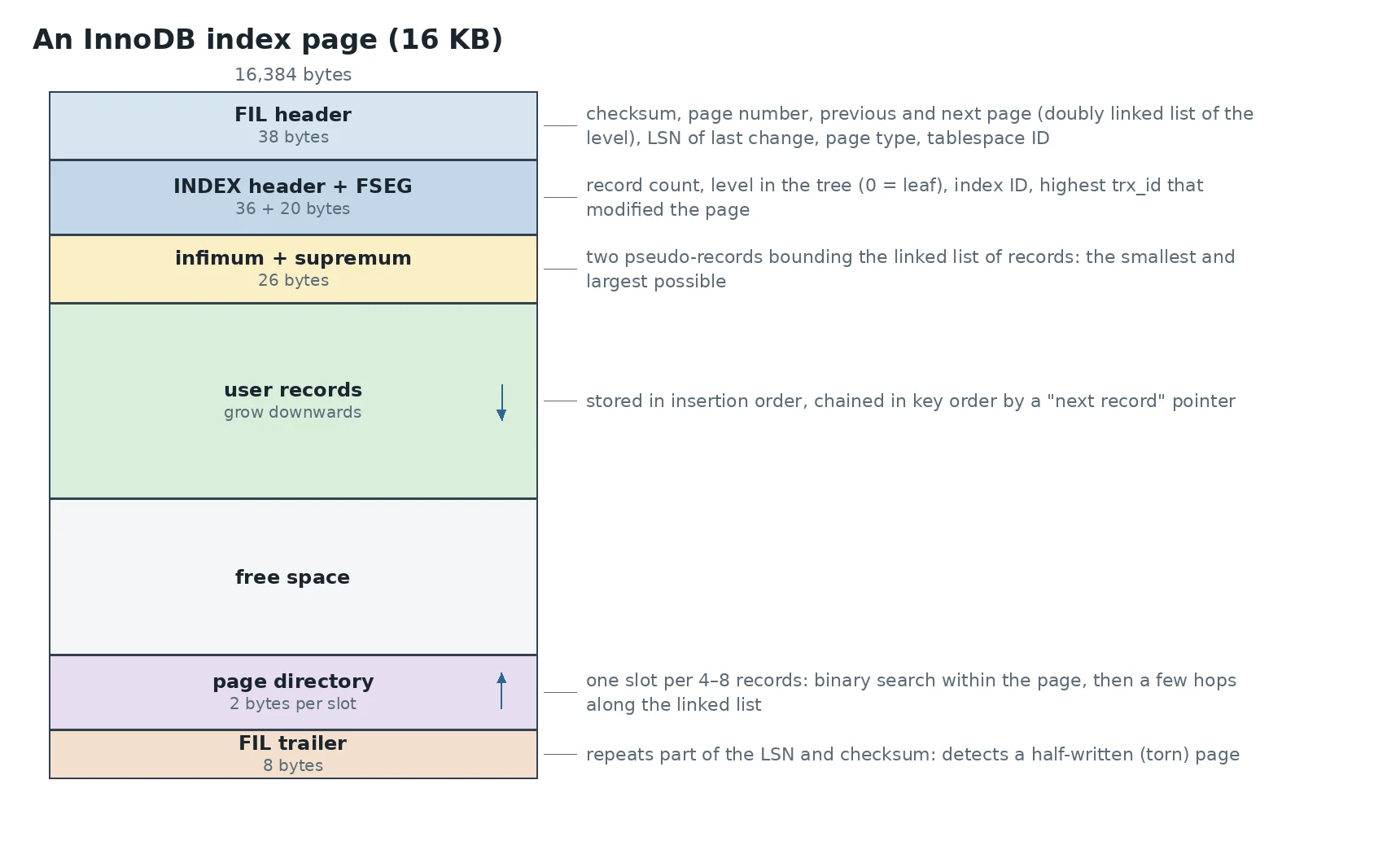
Structure of a 16 KB InnoDB index page
An index page: headers, records, free space, directory and trailer.

Each area has a reason to exist:

  • The FIL header is shared by every page, whatever its type. It holds the checksum, which detects corruption on read, and the LSN (Log Sequence Number) of the last change. After a crash, InnoDB compares that LSN with each redo entry’s: it only replays what the page hasn’t received yet. The previous and next page pointers link every page of one tree level;
  • the INDEX header gives the page’s level in the tree (0 for a leaf), the record count and the ID of the index it belongs to;
  • infimum and supremum are two fake records, the smallest and largest possible. They act as start and end of the linked list of records, which simplifies insertion code;
  • records are written in arrival order, but each points to the next in key order. Inserting in the middle moves nothing: two pointers change;
  • the page directory starts at the end of the page and grows upwards. It holds one “slot” per 4–8 records. To find a key, InnoDB binary-searches the slots, then walks at most a few records along the linked list;
  • the FIL trailer repeats part of the LSN and checksum. If the start and end of the page don’t match, the page was only half written.

When a page is full and a record must go in, InnoDB splits it in two (page split) and updates the parent page. When two neighbouring pages drop below half full, it can merge them. These operations are expensive and leave half-empty pages: that’s fragmentation.

The doublewrite buffer: why write twice

A disk guarantees atomic writes of 512 bytes or 4 KB, not 16 KB. If the server stops in the middle of writing a page, it can end up half old, half new: a torn page. Redo can’t fix it, because it describes changes to apply to a consistent page. So InnoDB writes each page first to the doublewrite buffer, then to its final location. After a crash, a torn page is replaced by its intact copy, then redo is applied. On a filesystem that itself guarantees atomic 16 KB writes (ZFS, some SSDs), it can be turned off.

A record
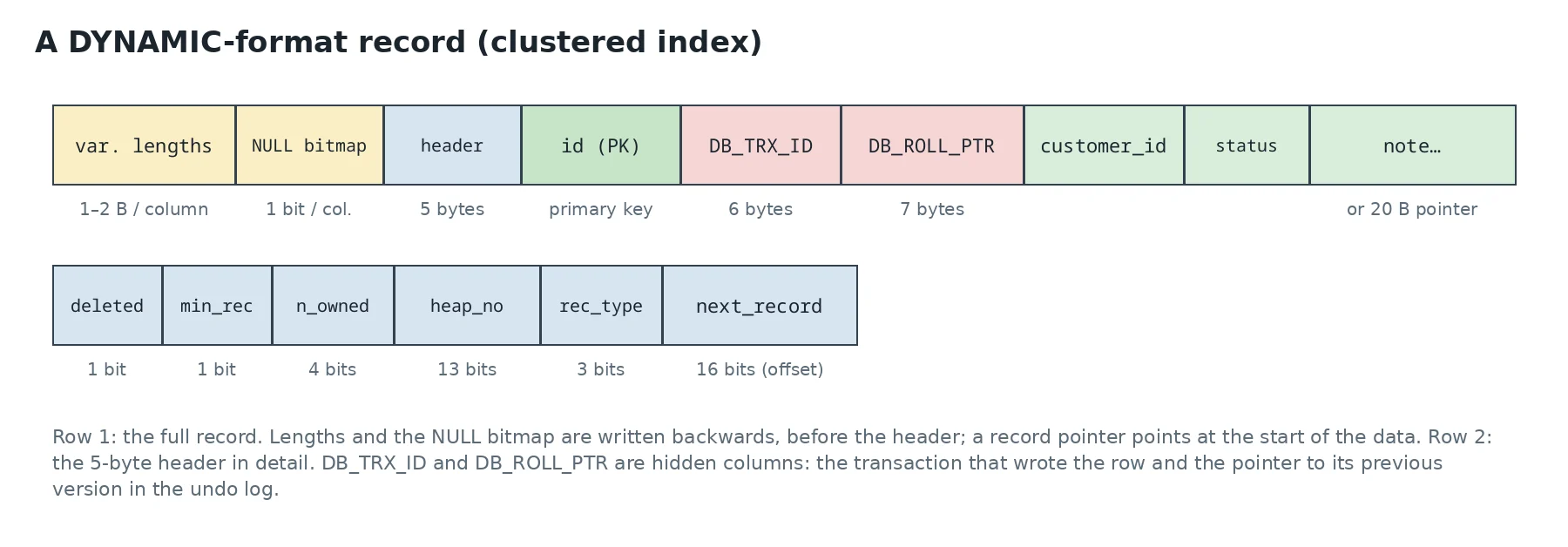
InnoDB DYNAMIC record format
A clustered-index record and its header in detail.
  • Hidden columns: DB_TRX_ID is the ID of the last transaction that modified the row, DB_ROLL_PTR points to the previous image in undo. A transaction that mustn’t see the change follows that pointer to rebuild the old version;
  • without a primary key, InnoDB uses the first non-null unique key, or failing that adds a hidden 6-byte DB_ROW_ID column, fed by a global counter shared by all such tables. Always define a primary key;
  • the “deleted” bit: a DELETE only marks the record. It’s actually removed later by the purge thread, once no transaction can see it any more;
  • NULLs cost only a bit in the bitmap: no room in the data;
  • long columns (TEXT, BLOB, large VARCHAR): a record must fit in roughly half a page, so a page holds at least two records. In DYNAMIC format, a value that’s too long goes entirely to overflow pages, and the record keeps only a 20-byte pointer.

The clustered index: the table is a tree
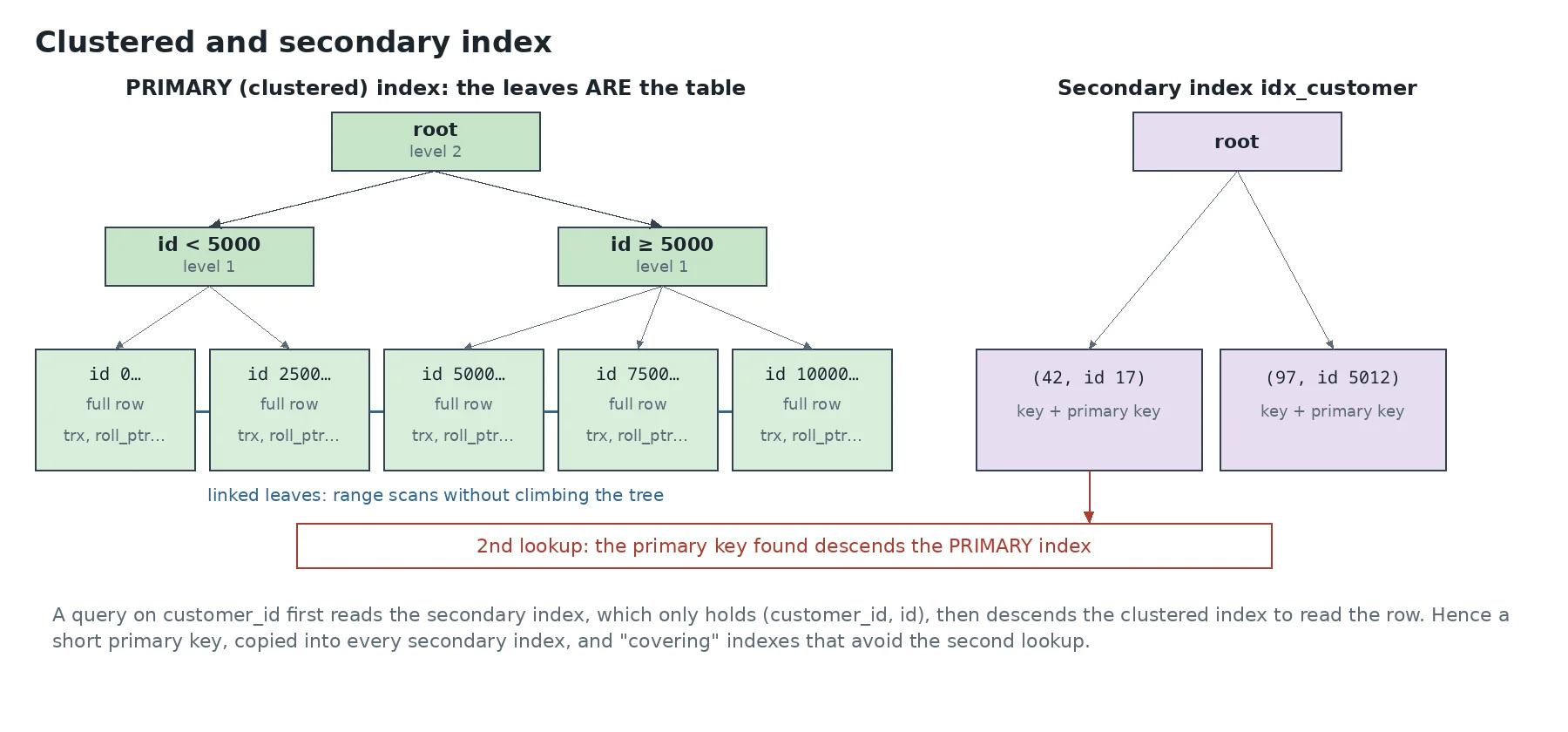
InnoDB clustered and secondary index
The PRIMARY index leaves hold the rows; a secondary index holds the primary key.

This is InnoDB’s most important design decision: the table is the primary key index. There’s no separate “heap” of rows: full rows are stored in the leaves of a B+tree sorted by primary key. Several practical consequences follow:

  • a primary key lookup descends the tree and finds the row directly. With 16 KB pages and a BIGINT key, an internal page references over a thousand child pages: three levels are enough for hundreds of millions of rows;
  • an increasing primary key (AUTO_INCREMENT) always appends at the right of the tree: pages fill cleanly, with no splits in the middle. A random key (UUID v4) inserts anywhere, causes splits everywhere and leaves half-full pages. Time-ordered UUIDs (UUID v7) avoid the problem;
  • a secondary index doesn’t hold the row’s physical address but its primary key. A secondary index lookup therefore costs two tree descents. In return, moving a row during a split doesn’t require updating the secondary indexes;
  • a long primary key is copied into every secondary index: a 36-character key inflates every index;
  • a covering index, holding every column the query needs, avoids the second descent: EXPLAIN then shows Using index.

Why the file doesn’t shrink

A massive DELETE frees room inside the pages, which later inserts will reuse, but gives nothing back to the filesystem. To reclaim space, rebuild the table:

OPTIMIZE TABLE shop.orders;          -- for InnoDB, equivalent to ALTER TABLE … FORCE
-- check how much space is actually reclaimable first
SELECT table_name, data_free/1024/1024 AS free_mb
FROM information_schema.tables WHERE table_schema='shop' ORDER BY data_free DESC;

The rebuild copies every row into a new, compact file, then replaces the old one. It runs online on recent versions, but temporarily needs room for a second copy of the table.

Next post: PostgreSQL, which made the opposite choice on almost every one of these points: a heap table, 8 KB pages, and old versions kept in the table itself.


This post is part of a series of sysadmin notes (tag “sysadmin notebook”).
Series “Inside database data files”, part 1/3. · Next post → (coming 25 Oct) · Version française

A /boot too small, mirrored disks and alerts: spring cleaning… in October

A morning of housekeeping on the home server (Rocky Linux 10 on an old ASRock board). On the list: a /boot partition that had become too small, disks sitting idle in the machine that it was time to mirror, and Prometheus alerts so a dead disk no longer gets discovered by chance. Here’s how it went, commands included.

The problem: a 1 GB /boot that’s no longer enough

Rocky’s installer creates a 1 GB /boot by default. That seemed generous… until I looked at what’s actually in it:

$ ls -la --block-size=M /boot
152M initramfs-6.12.0-211.67.1.el10_2.x86_64.img
 39M initramfs-6.12.0-211.67.1.el10_2.x86_64kdump.img
 16M vmlinuz-6.12.0-211.67.1.el10_2.x86_64
159M initramfs-0-rescue-….img
 16M vmlinuz-0-rescue-…

About 217 MB per kernel, plus 175 MB for the rescue image. With installonly_limit=3 in dnf.conf, that’s ~825 MB out of 960. And the trap: during an update, dnf installs the new kernel before removing the oldest. So for a moment there are four kernels, and they don’t fit.

Why a 152 MB initramfs? lsinitrd has the answer: about a hundred MB of NVIDIA (GSP) firmware pulled in by the nouveau driver, because there’s a GeForce GTX 1060 in the machine. I’m keeping nouveau, so the fix is a bigger /boot.

$ lsinitrd /boot/initramfs-$(uname -r).img | sort -k5 -n | tail -3
… 13371848 usr/lib/firmware/nvidia/tu102/gsp/gsp-570.144.bin.xz
… 25639648 usr/lib/firmware/nvidia/ga102/gsp/gsp-535.113.01.bin.xz
… 51324396 usr/lib/firmware/nvidia/ga102/gsp/gsp-570.144.bin.xz

Why not just grow the partition?

Because the partition after /boot is the system’s LVM physical volume, right behind it. And XFS can’t shrink. Growing in place would mean moving the whole LVM (pvmove to a new partition, delete the old one, grow /boot into the gap). Doable online, but that’s a lot of handling on the system disk of a machine that had hung on reboot just two days earlier.

There were more than 300 GB free at the end of the disk. Simpler plan: create a new 2 GB /boot partition in that free space, copy the old /boot into it, and reinstall GRUB so it uses it. The old partition stays untouched as a safety net.

Moving /boot to a new partition (BIOS + GPT)

The important point is the boot mode. Here it’s legacy BIOS on a GPT disk: GRUB keeps its main stage (core.img) in the small 1 MB bios_grub partition, and that core.img has the location of /boot/grub2 hard-coded. Move /boot without re-running grub2-install, and GRUB keeps reading the old partition. On UEFI, it’s the ESP’s grub.cfg that would need updating instead.

$ parted -s /dev/sde unit MiB print free
Number  Start    End        Size       File system  Name  Flags
 1      1.00MiB  2.00MiB    1.00MiB                       bios_grub
 2      2.00MiB  1026MiB    1024MiB    xfs                bls_boot
 3      1026MiB  160406MiB  159380MiB                     lvm
        160406MiB  476940MiB  316534MiB  Free Space

Do this with console access (screen and keyboard, or IPMI), in case the first reboot goes wrong.

1. Create and format the new partition

parted -s /dev/sde mkpart boot2 xfs 160406MiB 162454MiB   # 2 GiB -> sde4
mkfs.xfs -L boot2 /dev/sde4

2. Copy /boot’s contents

mkdir -p /mnt/newboot
mount /dev/sde4 /mnt/newboot
cp -a /boot/. /mnt/newboot/      # -a keeps permissions, links and SELinux contexts
restorecon -R /mnt/newboot

3. Point /etc/fstab at the new partition

cp -a /etc/fstab /etc/fstab.bak
blkid -s UUID -o value /dev/sde4          # new UUID
# replace the UUID on the /boot line with it, then:
systemctl daemon-reload
umount /mnt/newboot
umount /boot && mount /boot
findmnt /boot                             # should show /dev/sde4

4. Reinstall GRUB and regenerate its config

grub2-install /dev/sde                    # core.img now points at sde4
grub2-mkconfig -o /boot/grub2/grub.cfg

The BLS boot entries (/boot/loader/entries/*.conf) use paths relative to the /boot partition, so they work as they are, and grubenv (the default kernel) was copied with everything else.

5. Reboot and check

reboot
findmnt /boot            # /dev/sde4
df -h /boot              # ~2 GB
grubby --default-kernel  # still the right kernel

Rollback: the old sde2 partition hasn’t been touched. If GRUB drops to its rescue prompt, you can point it back by hand:

grub rescue> set prefix=(hd0,gpt2)/grub2
grub rescue> set root=(hd0,gpt2)
grub rescue> insmod normal
grub rescue> normal

Then put the old UUID back in /etc/fstab and re-run grub2-install /dev/sde. Once the new partition has proven itself over a few reboots and kernel updates, the old one is just a wasted gigabyte, which is no big deal.

Along the way: mirroring /data… with 4 MB missing

The machine also had disks doing nothing. I’m using one to mirror /data (931 GB: databases, repositories, backups) with LVM RAID1. On paper it’s a single command, no downtime:

lvconvert --type raid1 -m1 data/lvol0 /dev/sdd

In practice it fails. An LVM RAID1 LV needs, on each disk, a small metadata area (rmeta, one 4 MB extent) on top of the copy of the data. The original LV used all the extents on the first disk (238,467 of 238,467), and the second disk is exactly the same size. So it’s 4 MB short on each side. And since XFS can’t shrink, there’s no way to free them.

The way out is to go the other direction:

  • create an LV one extent smaller on the new disk, format it, and copy /data to it while everything runs (rsync -aHAXS --numeric-ids, which keeps hard links, ACLs, xattrs/SELinux and sparse files);
  • stop the services using /data (MariaDB, PostgreSQL, Forgejo…), run a final rsync --delete, rename the LVs so the new one takes the old one’s name (fstab doesn’t need to change), then restart the services. Expect about a quarter of an hour of downtime;
  • keep the old LV for a day as a safety net, then delete it and run lvconvert --type raid1 -m1 onto the old disk, which now has room for its rmeta area. The sync runs in the background.

Lesson learned: when you create an LV you might want to mirror one day, leaving a few extents free (-l 99%FREE rather than 100%FREE) saves you the whole detour.

For two other old identical disks with no data, it’s much simpler. Create a mirrored volume directly and LVM reserves room for the metadata itself:

vgcreate bulk /dev/sda /dev/sdb
lvcreate --type raid1 -m1 -l 100%FREE -n lvol0 bulk
mkfs.xfs /dev/bulk/lvol0
# in /etc/fstab, nofail: an old disk dying must not block boot
/dev/bulk/lvol0  /bulk  xfs  defaults,nofail  0 0

Monitoring the mirrors with Prometheus

A mirror nobody notices has lost a disk isn’t worth much. By default LVM only logs a warning, and node_exporter knows nothing about LVM RAID (its mdadm collector only covers md). So I added a small script, run every two minutes by a systemd timer, that writes the RAID LVs’ state into node_exporter’s textfile collector directory (--collector.textfile.directory):

lvs --noheadings --nosuffix --separator ';' \
    -o vg_name,lv_name,lv_health_status,raid_sync_action,copy_percent,raid_mismatch_count \
    --select 'segtype=~raid'

That gives metrics like lvm_raid_healthy (0 as soon as lv_health_status isn’t empty, e.g. partial when a disk is missing), lvm_raid_sync_percent and lvm_raid_mismatch_count. The file is written to a temporary file and then renamed with mv, so a scrape never hits a half-written file. Four alerts build on it:

- alert: LvmRaidDegraded        # a disk is missing or failing
  expr: lvm_raid_healthy == 0
  for: 5m
- alert: LvmRaidNotInSync       # a resync that never finishes
  expr: lvm_raid_sync_percent < 100
  for: 12h
- alert: LvmRaidMismatches      # the last scrub found differences
  expr: lvm_raid_mismatch_count > 0
- alert: LvmRaidMetricsStale    # the script itself stopped running
  expr: time() - lvm_raid_textfile_last_run_seconds > 900

On the hardware side, 1, 2 and 3 TB WD disks are waiting on the shelf. The day an alert fires: swap the disk, then pvcreate, vgextend and lvconvert --repair, and LVM rebuilds the mirror online.

In short

  • A 1 GB /boot is tight as soon as a driver pulls large firmware into the initramfs. Check with lsinitrd.
  • Moving /boot to a new partition is simpler and less risky than growing the existing one. On BIOS/GPT, don’t forget grub2-install.
  • LVM RAID1 needs one free extent per disk for its metadata. A 100%FREE LV on two identical disks can’t be converted in place.
  • A mirror without an alert is an outage waiting to happen. node_exporter’s textfile collector is a great fit for this kind of small addition.

This post is part of a series of sysadmin notes (tag “sysadmin notebook”).
Version française

The server that never came back (1/3): the symptom

One Tuesday evening, a routine update on the home server: dnf update -y, about a hundred packages including a new kernel and new firmware, then reboot. Normally the machine is back in under a minute. This time, nothing. No ping, no SSH, and above all no ARP reply on the local network: as far as the switch could tell, the network card no longer existed.

That last detail matters. A machine that boots but has a crashed service still answers ARP, because the kernel answers it, not an application. No ARP means the kernel isn’t running or the network card isn’t initialised. So the problem is low-level: kernel boot, initramfs, motherboard firmware, or the machine simply being off.

What you can check remotely

Before going down to the machine, I gathered what the rest of the network could see:

arping -c 3 -I eth0 192.168.10.17     # no reply: the network card is silent
ip neigh show 192.168.10.17           # FAILED entry in the neighbour's ARP table
  • The SIEM (Wazuh) had received one last event from the machine’s agent: “Wazuh agent stopped”, at the exact time of the reboot. That’s a sign of a clean shutdown, not a crash. A crash would have left no message at all.
  • The other machines on the network worked normally: the problem was neither the switch nor the router.
  • The virtual machine hosted on this server had gone down with it, consistent with a powered-off host.

What to look for on the screen

With no remote management card (no IPMI on a consumer motherboard), the only way to know is to look at the screen. Here’s the list I prepared, from most to least likely cause, so as not to improvise at the console:

  • Stuck in GRUB? Pick the previous kernel in the menu. If it boots, the new kernel or its initramfs is at fault. Then pin it with grubby --set-default.
  • Emergency shell (dracut, emergency mode)? journalctl -xb -p err shows why: LVM volume not found, invalid fstab entry, module missing from the initramfs.
  • SELinux relabel or fsck in progress? That’s slow on a big disk. Wait, and above all don’t cut the power.
  • Booted but no network? ip -br a and nmcli dev: a renamed or “unmanaged” card after an update happens more often than you’d think.
  • Black screen, fans spinning, nothing happening? The most puzzling case. It was mine.

The machine eventually came back after half an hour, with a long press on the power button. The system booted normally on the new kernel, without a single error. What remained was to understand what had happened, while the system journal only kept the current boot. That’s the subject of the next post.


This post is part of a series of sysadmin notes (tag “sysadmin notebook”).
Series “The server that never came back”, part 1/3. · Next post → (coming 25 Oct) · Version française

Issue with ssh key and selinux

When selinux was enabled I had a strange issue, my ssh key wasn’t working. When checking the sshd logs by putting DEBUG instead of INFO in LogLevel in /etc/ssh/sshd_config I saw that the ssh key was forbid to read by the system.

By doing ls -Zal I saw that the /home was unlabeled:

drwxr-xr-x. 3 system_u:object_r:unlabeled_t:s0 root root 20 Apr 12 17:14 home

running chcon -R -t user_home_t home solved the issue

MySQL logo

MySQL export without –lock-tables

One of the difficulties with mysqldump is to deal with lock tables.

But there is an option in mysqldump we can use to change how to dump safely without locking all tables:

--single-transaction

This option sets the transaction isolation mode to REPEATABLE READ and sends a START TRANSACTION SQL statement to the server before dumping data. It is useful only with transactional tables such as InnoDB, because then it dumps the consistent state of the database at the time when START TRANSACTION was issued without blocking any applications.

When using this option, you should keep in mind that only InnoDB tables are dumped in a consistent state. For example, any MyISAM or MEMORY tables dumped while using this option may still change state.

While a --single-transaction dump is in process, to ensure a valid dump file (correct table contents and binary log coordinates), no other connection should use the following statements: ALTER TABLE, CREATE TABLE, DROP TABLE, RENAME TABLE, TRUNCATE TABLE. A consistent read is not isolated from those statements, so use of them on a table to be dumped can cause the SELECT that is performed by mysqldump to retrieve the table contents to obtain incorrect contents or fail.

The --single-transaction option and the --lock-tables option are mutually exclusive because LOCK TABLES causes any pending transactions to be committed implicitly.

To dump large tables, combine the --single-transaction option with the --quick option.

oracle block map

Script for oracle block map

Sometimes, in order to see fragmented tables in Oracle database, you need to check the block map in datafiles.

Here, I’m sharing with you a script for checking that 🙂

col segment_name format a30
col owner format a30
col segment_type format a30
col partition_name format a45
col segment_type format a30
select  file_id,
        block_id,
        block_id + blocks - 1   end_block,
        blocks,
        owner,
        segment_name,
        partition_name,
        segment_type
from dba_extents
where
        tablespace_name = 'SYSAUX'
union all
select  file_id,
        block_id,
        block_id + blocks - 1   end_block,
        blocks,
        'free'                  owner,
        'free'                  segment_name,
        null                    partition_name,
        null                    segment_type
from dba_free_space 
where tablespace_name = 'SYSAUX'
order by 1,2;
At sign (@) illustration

Ssmtp & Let’s Encrypt

The issue I had was related to sending emails from my mid to my back server (mail & database) since I configured SMTP with Let’s Encrypt certificate.

With debug the error is:
SSL not working: certificate verify failed (20)

When I checked the certificate, I had :

openssl s_client -connect smtp.xxx.fr:587 -starttls smtp -servername smtp.xxx.fr
CONNECTED(00000003)
depth=0 CN = smtp.xxx.fr
verify error:num=20:unable to get local issuer certificate
verify return:1
depth=0 CN = smtp.xxx.fr
verify error:num=21:unable to verify the first certificate
verify return:1

The solution I found is

copy into /etc/pki/ca-trust/source/anchors the Let’s Encrypt fullchain certificate (chain.pem)
And do an update-ca-trust extract

Error solved !

SQL Certification passed !

Title1Z0-007 Introduction to Oracle9i: SQL
Started8/28/2008 8:42:24 AM (GMT+0:00)
Ended8/28/2008 9:42:31 AM (GMT+0:00)
Passing Score70%
Your ScorePass – 78.85% (41 earned out of 52 possible)
CommentsCongratulations! Ready for what’s next? Oracle University can get you to your next target proficiency level with additional Oracle classes and certification offerings. Visit Oracle University at http://www.oracle.com/education.