Systemd kernel protection: ProtectKernelTunables, PrivateDevices and the other kernel and device directives
Systemd kernel protection, directive by directive: tunables, modules, logs, clock, cgroups, devices, /proc and hostname, each tested on a real bench.
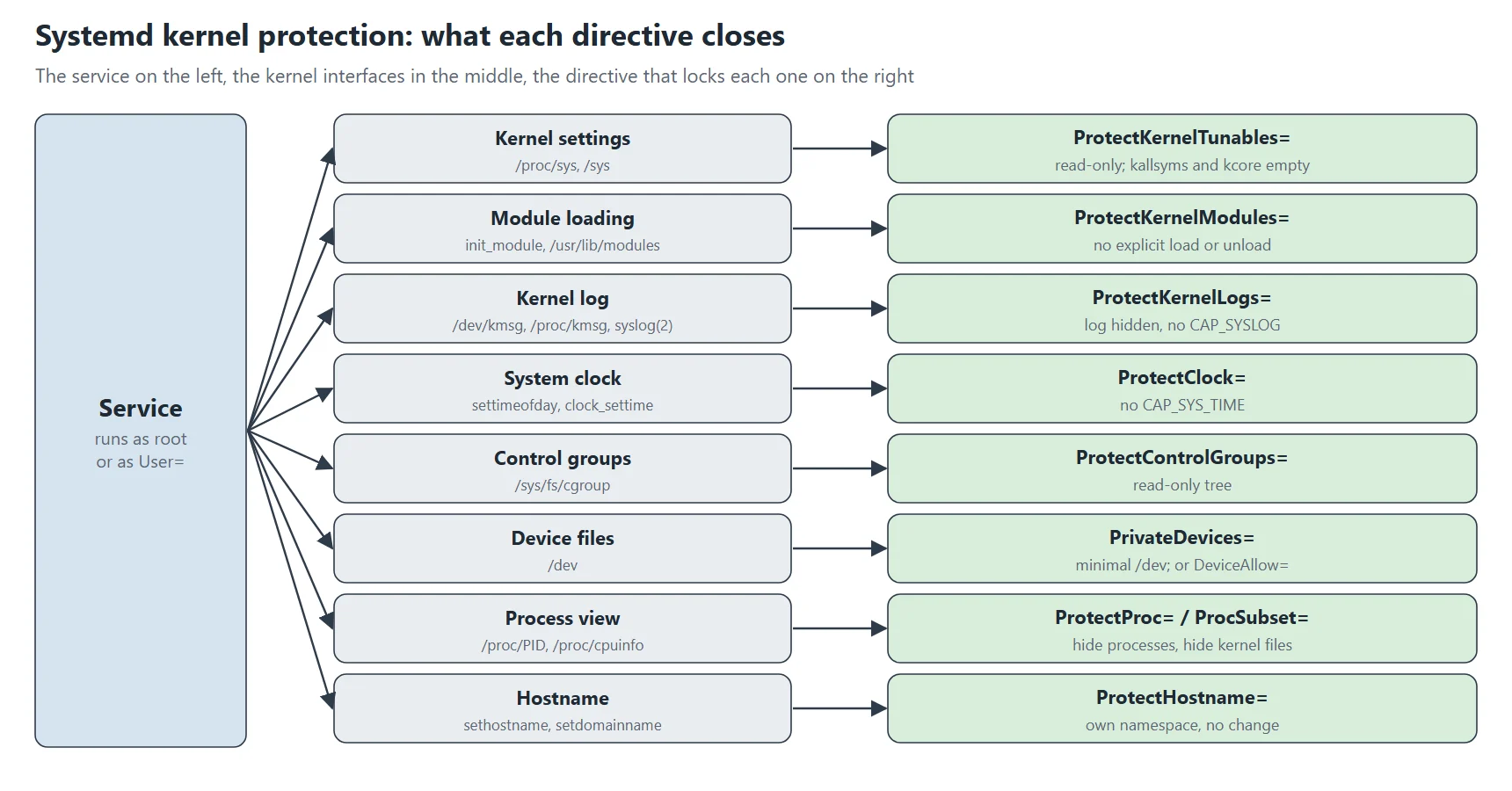
Systemd kernel protection is the family of directives that stop a service from reaching the parts of the kernel it never needs: the settings under /proc/sys, kernel modules, the kernel log, the clock, the control groups, the device files, the process view in /proc and the hostname. This is part 4 of a series of 8 on systemd hardening, directive by directive. In this part, I explain what each of these directives does, what it usually breaks, how to test it safely and what it means for the kind of stack I run.
I wrote this article so that a beginner sysadmin can follow it. Therefore, every directive comes with a complete drop-in file, the exact commands in the order to run them and a hands-on lab: a harmless demo script shows the effect of each directive in a few seconds. Every statement about a directive comes from the official systemd manual pages, listed at the end.
Before you start
Systemd kernel protection is easy to learn if you prepare the ground first. Read this short checklist before you touch any service.
- Use a test machine. A virtual machine or a throwaway Linux host is ideal. The lab commands are harmless, but a typo in a drop-in can stop a service.
- Check your systemd version. Run
systemctl --version. According to the manual, PrivateDevices arrived in version 209, ProtectKernelTunables, ProtectKernelModules and ProtectControlGroups in 232, ProtectHostname in 242, ProtectKernelLogs in 244, ProtectClock in 245, and ProtectProc and ProcSubset in 247. - Have root access and a way back. You need
sudo. - Know how to undo.
sudo systemctl revert myapp.serviceremoves the drop-ins you created for that unit. - Change one directive at a time on a non-critical service, then read the journal before you go on.
Where I tested. Every output in this article is real. I ran the commands on Rocky Linux 10.2 with systemd 257 and the kernel 6.18.54.1-microsoft-standard-WSL2, as root, with SELinux disabled. WSL2 is not a standard server: SELinux is not available there, and some kernel interfaces differ. Therefore, treat each result as what happened on this bench, not as a universal truth. I also read the current manual, which documents options that systemd 257 does not know yet. I point out each difference.
A short glossary for beginners
| Term | Plain meaning |
|---|---|
| Kernel | The core of the operating system. Programs ask it, through system calls, to open files, use the network or change settings. |
| System call | A request from a program to the kernel, for example "open this file" or "set the clock". |
| sysctl or kernel tunable | A kernel setting you can read and change while the machine runs. The kernel shows it as a file under /proc/sys; for example vm.swappiness is /proc/sys/vm/swappiness. |
| /proc | A virtual directory where the kernel shows one numbered directory per process, plus system information such as cpuinfo. |
| /sys | A virtual directory where the kernel shows devices, drivers and some settings. |
| Kernel module | A piece of kernel code (a driver, a firewall extension, a file system) that the kernel loads when needed. |
| Capability | A slice of root’s powers, such as loading modules or setting the clock. A process can keep some and lose others. |
| Bounding set | The list of capabilities a process and its children can never exceed. |
| Control group (cgroup) | The kernel feature that systemd uses to group a service’s processes and to account for or limit their resources. |
| Device node | A special file in /dev, such as /dev/null, that stands for a device or a pseudo device. |
| Namespace | A private view of a system resource (the mounts, the hostname…) that the kernel gives to a group of processes. |
| Unit and drop-in | A unit is something systemd manages, such as a service. A drop-in is a small .conf file in a directory named after the unit (myapp.service.d/) that adds settings without touching the original unit file. |
Systemd kernel protection at a glance
The table below summarises the ten directives of systemd kernel protection. The last column tells you what each one means for my own stack. I only claim what my notes and articles say. Everything else reads as "if you run X, expect…".
| Directive | What it does | Risk of breaking | Impact on my stack |
|---|---|---|---|
ProtectKernelTunables= | Makes /proc/sys, /sys and a few more paths read-only, and hides /proc/kallsyms and /proc/kcore | A service that writes a sysctl at start fails | None of my documented drop-ins uses it; my hardening role already sets kernel sysctls for the whole host |
ProtectKernelModules= | Blocks explicit module loading, removes CAP_SYS_MODULE, hides /usr/lib/modules | A start script that runs modprobe fails | My Suricata role loads its modules itself, outside the service |
ProtectKernelLogs= | Removes CAP_SYSLOG, hides /dev/kmsg and /proc/kmsg | Tools that read dmesg fail | Adds a per-service lock to the host-wide dmesg_restrict of my hardening role |
ProtectClock= | Removes CAP_SYS_TIME and CAP_WAKE_ALARM and filters clock calls | A time daemon cannot set the clock | Must stay off for chrony, which runs on my hosts |
ProtectControlGroups= | Makes /sys/fs/cgroup read-only | Container runtimes and cgroup managers fail | Not tested on my Podman virtual machine |
PrivateDevices= | Gives the service a minimal /dev | Anything that needs real hardware fails | Would hide the GPU that my media server uses for hardware transcoding |
DevicePolicy= and DeviceAllow= | Choose which device nodes the service may open | strict denies even /dev/null until you allow it | The way to give the media server only its GPU |
ProtectProc= | Hides other users’ processes in /proc | Needs User=; process listing tools lose data | Check any agent that inventories processes |
ProcSubset= | Shows only the process files in /proc | Programs that read /proc/cpuinfo or /proc/meminfo fail | For simple services only |
ProtectHostname= | Blocks changes of the hostname | Almost nothing in practice | My notes mention no service that sets a hostname |
How to apply and undo one systemd kernel protection safely
Systemd reads a service’s settings from its unit file. However, you should never edit the file that your package installed, because an update would replace your change. Instead, you add a drop-in. For myapp.service, the drop-in directory is myapp.service.d/. The manual says that systemd reads every .conf file in that directory in alphanumeric order, and that drop-ins in /etc/systemd/system take precedence over those in /run and /usr/lib. Therefore, I name my files 10-something.conf, so that I can add 20-something.conf later.
Here is the complete cycle that I repeat for every directive in this article. The comments explain each line in plain language.
# 1. Create a drop-in directory named after your service (replace myapp.service by your own unit)
sudo mkdir -p /etc/systemd/system/myapp.service.d
# 2. Write the drop-in. The [Service] header is required and the file name must end in .conf
sudo tee /etc/systemd/system/myapp.service.d/10-kernel-protection.conf > /dev/null <<'EOF'
[Service]
# Example: make the kernel settings read-only for this service.
ProtectKernelTunables=yes
EOF
# 3. Make systemd re-read its configuration, then restart the service
sudo systemctl daemon-reload
sudo systemctl restart myapp.service
# 4. Check that the setting is active, that the service runs and what it logged
systemctl show -p ProtectKernelTunables --value myapp.service
systemctl is-active myapp.service
sudo journalctl -u myapp.service -n 20 --no-pager
# 5. Undo everything: remove the drop-ins you created, reload and restart
sudo systemctl revert myapp.service
sudo systemctl daemon-reload
sudo systemctl restart myapp.service
You can also run sudo systemctl edit myapp.service. It opens an editor on a drop-in named override.conf and, according to the manual, reloads the configuration when you save. The manual does not say that systemctl revert reloads systemd, so the cycle above runs daemon-reload after it.
To see how exposed a service is, run systemd-analyze security --no-pager myapp.service. The manual explains that it gives an overall exposure level from 0.0 to 10.0, where a high value means little sandboxing. It only measures what systemd itself implements. It does not cover what a service can ask other services to do over IPC. I use it as a guide, not as a proof.
Build the lab: a harmless demo script
The lab uses one small script. Each argument tests one group of directives and prints one to five short lines. Nothing in it is dangerous: it writes the current value of a kernel setting back to itself, reads and counts, and touches the clock or the hostname only when you explicitly ask for it. Copy the whole block below as it is.
sudo tee /usr/local/bin/demo-hardening-lab.sh > /dev/null <<'EOF'
#!/bin/sh
# demo-hardening-lab.sh: each argument tests ONE group of directives and prints short result lines.
case "$1" in
  tunables)
    # Write the CURRENT value of a kernel setting back to itself: harmless if the write works.
    value=$(cat /proc/sys/vm/swappiness)
    if { echo "$value" > /proc/sys/vm/swappiness; } 2>/dev/null; then echo "tunables: write allowed"; else echo "tunables: write blocked"; fi
    # Try to read one byte of the kernel symbol table: 1 means readable, 0 means empty or blocked.
    echo "kallsyms: $(head -c 1 /proc/kallsyms 2>/dev/null | wc -c) byte read"
    ;;
  modules)
    # Count the entries that /usr/lib/modules shows (one directory per installed kernel).
    echo "modules directory: $(ls /usr/lib/modules 2>/dev/null | wc -l) entries"
    ;;
  logs)
    # Try to read the kernel log.
    if dmesg > /dev/null 2>&1; then echo "kernel log: readable"; else echo "kernel log: blocked"; fi
    ;;
  clock)
    # Sets the clock to the current second. Runs only when LAB_ALLOW_CLOCK=1 is passed.
    if [ "$LAB_ALLOW_CLOCK" != "1" ]; then echo "clock: skipped (pass LAB_ALLOW_CLOCK=1)"; exit 0; fi
    if date -s "@$(date +%s)" > /dev/null 2>&1; then echo "clock: set allowed"; else echo "clock: set blocked"; fi
    ;;
  cgroups)
    # Test write access to the control group tree.
    if [ -w /sys/fs/cgroup ]; then echo "cgroup tree: writable"; else echo "cgroup tree: read-only"; fi
    ;;
  devices)
    # Count the entries of /dev and look for four physical or special devices.
    echo "entries in /dev: $(ls /dev | wc -l)"
    for d in /dev/mem /dev/kmsg /dev/rtc0 /dev/kvm; do
      if [ -e "$d" ]; then echo "$d: present"; else echo "$d: absent"; fi
    done
    ;;
  policy)
    # Try to read one byte from two pseudo devices.
    for d in /dev/zero /dev/urandom; do
      if head -c 1 "$d" > /dev/null 2>&1; then echo "$d: readable"; else echo "$d: blocked"; fi
    done
    ;;
  proc)
    # Count the process directories visible in /proc, and look for a kernel information file.
    echo "process directories in /proc: $(ls /proc | grep -c '^[0-9][0-9]*$')"
    n=0
    for d in /proc/[0-9]*; do if head -c 1 "$d/status" > /dev/null 2>&1; then n=$((n+1)); fi; done
    echo "process status files readable: $n"
    if [ -e /proc/cpuinfo ]; then echo "/proc/cpuinfo: present"; else echo "/proc/cpuinfo: absent"; fi
    ;;
  host)
    # Changes the hostname. Runs only when LAB_ALLOW_HOST=1 is passed, and only with ProtectHostname set.
    if [ "$LAB_ALLOW_HOST" != "1" ]; then echo "host: skipped (pass LAB_ALLOW_HOST=1)"; exit 0; fi
    if hostname demo-hardening-host 2>/dev/null; then echo "hostname: change allowed, the unit now sees $(hostname)"; else echo "hostname: change blocked"; fi
    ;;
  caps)
    # Show which of six capabilities remain in the bounding set, and how many seccomp filters are installed.
    value=$((0x$(awk '/^CapBnd/ {print $2}' /proc/self/status)))
    for pair in CAP_SYS_MODULE:16 CAP_SYS_RAWIO:17 CAP_SYS_TIME:25 CAP_MKNOD:27 CAP_SYSLOG:34 CAP_WAKE_ALARM:35; do
      name=${pair%%:*}; bit=${pair##*:}
      if [ $(( (value >> bit) & 1 )) -eq 1 ]; then echo "$name: kept"; else echo "$name: removed"; fi
    done
    echo "seccomp filters: $(awk '/^Seccomp_filters/ {print $2}' /proc/self/status)"
    ;;
  *)
    echo "usage: $0 tunables|modules|logs|clock|cgroups|devices|policy|proc|host|caps"
    exit 2
    ;;
esac
EOF
sudo chmod 755 /usr/local/bin/demo-hardening-lab.sh
Then run it through systemd-run, which starts a transient service that disappears when it ends. The manual describes the options: --quiet hides the informational messages, --pipe connects the output of the service to your terminal, --wait waits until the unit stops, --collect unloads the unit afterwards, and -p sets a property in the same format as systemctl set-property. First, run a baseline without any directive:
sudo systemd-run --quiet --pipe --wait --collect /usr/local/bin/demo-hardening-lab.sh tunables
Real output on the test bench:
tunables: write allowed
kallsyms: 1 byte read
Now you know the baseline. In each section below, you add a directive with -p, compare the output and, if you want to keep it, copy the matching drop-in to a real service. When the lab is over, delete the script with sudo rm /usr/local/bin/demo-hardening-lab.sh; the transient units leave nothing behind.
Kernel settings, modules and logs
ProtectKernelTunables
ProtectKernelTunables= makes the kernel’s settings read-only for the service. The manual lists /proc/sys/, /sys/, /proc/sysrq-trigger, /proc/latency_stats, /proc/acpi, /proc/timer_stats, /proc/fs and /proc/irq as read-only, and /proc/kallsyms and /proc/kcore as inaccessible. It also implies MountAPIVFS=yes. It exists since version 232 and it is off by default. The manual warns that it does not block indirect changes through other processes, and that InaccessiblePaths= can help.
What breaks? A service that writes a sysctl when it starts, for example from an ExecStartPre= script, fails with a read-only file system error. A program that reads the kernel symbol table loses access to it.
Try it in the lab, with and without the directive:
sudo systemd-run --quiet --pipe --wait --collect -p ProtectKernelTunables=yes /usr/local/bin/demo-hardening-lab.sh tunables
Real output on the test bench, first the baseline, then with the directive:
tunables: write allowed
kallsyms: 1 byte read

# with ProtectKernelTunables=yes
tunables: write blocked
kallsyms: 0 byte read
The write is refused, as the manual says. The second line deserves an explanation. At first, my test only checked that the file could be opened, and it said "readable" in both cases. Actually, systemd hides /proc/kallsyms by mounting an empty file with mode 000 on top of it, and root can still open such a file; it just reads nothing. The evidence below comes from inside the protected service:
# inside the protected service, shortened by cutting whole lines
---------- 1 root root 0 Nov  2 14:53 /proc/kallsyms
---------- 1 root root 0 Nov  2 14:53 /proc/kcore
[...]
813 809 0:63 /systemd/inaccessible/reg /proc/kallsyms ro,nosuid,nodev,noexec shared:502 master:18 - tmpfs none rw,mode=755
814 809 0:63 /systemd/inaccessible/reg /proc/kcore ro,nosuid,nodev,noexec shared:503 master:18 - tmpfs none rw,mode=755
816 809 0:87 /sys /proc/sys ro,nosuid,nodev,noexec,relatime shared:505 - proc proc rw
Therefore, measure what a service can read, not whether it can open a file. That is why the lab prints the number of bytes read.
Here is the complete drop-in for a real service:
# 1. Create a drop-in directory named after your service (replace myapp.service by your own unit)
sudo mkdir -p /etc/systemd/system/myapp.service.d
# 2. Write the drop-in. The [Service] header is required and the file name must end in .conf
sudo tee /etc/systemd/system/myapp.service.d/10-protect-kernel-tunables.conf > /dev/null <<'EOF'
[Service]
# Make /proc/sys, /sys and other kernel settings read-only for this service.
ProtectKernelTunables=yes
EOF
# 3. Make systemd re-read its configuration, then restart the service
sudo systemctl daemon-reload
sudo systemctl restart myapp.service
# 4. Check that the setting is active, that the service runs and what it logged
systemctl show -p ProtectKernelTunables --value myapp.service
systemctl is-active myapp.service
sudo journalctl -u myapp.service -n 20 --no-pager
# 5. Undo everything: remove the drop-ins you created, reload and restart
sudo systemctl revert myapp.service
sudo systemctl daemon-reload
sudo systemctl restart myapp.service
Effect on my stack. My hardening role already writes kernel sysctls for the whole host, as my wiki lists: kptr_restrict and dmesg_restrict, a ptrace_scope of 1, a perf_event_paranoid of 3, no unprivileged user namespaces and no SUID core dumps. That protects the machine. As systemd kernel protection, ProtectKernelTunables= adds a lock for a single service, so that a compromised service cannot change those values at run time. None of the drop-ins I have documented uses it yet. If you run a reverse proxy, PHP-FPM, a database or a Go application, expect them not to write to /proc/sys. If one of your units applies a sysctl itself, expect it to fail.
ProtectKernelModules
ProtectKernelModules= denies explicit loading and unloading of kernel modules. According to the manual, it removes CAP_SYS_MODULE from the bounding set, installs a system call filter for the module-related calls and makes /usr/lib/modules inaccessible. It exists since version 232. The manual also warns that limited automatic module loading can still happen, and that the kernel.modules_disabled sysctl disables that.
What breaks? A start script that calls modprobe or insmod fails, and so does any tool that lists the installed modules.
sudo systemd-run --quiet --pipe --wait --collect -p ProtectKernelModules=yes /usr/local/bin/demo-hardening-lab.sh modules
Real output on the test bench:
modules directory: 4 entries

# with ProtectKernelModules=yes
modules directory: 0 entries
Again, the directory is not gone: it shows no entry. The evidence from inside the service shows a directory with mode 000, mounted from systemd’s own empty directory:
# shortened by cutting whole lines
[...]
d--------- 2 root root 40 Nov  2 14:53 /lib/modules
d--------- 2 root root 40 Nov  2 14:53 /usr/lib/modules
804 771 0:63 /systemd/inaccessible/dir /usr/lib/modules ro,nosuid,nodev,noexec shared:495 master:18 - tmpfs none rw,mode=755
The capability is gone as well. The lab script has a caps mode that prints six capabilities and the number of seccomp filters:
sudo systemd-run --quiet --pipe --wait --collect -p ProtectKernelModules=yes /usr/local/bin/demo-hardening-lab.sh caps
CAP_SYS_MODULE: kept
CAP_SYS_RAWIO: kept
CAP_SYS_TIME: kept
CAP_MKNOD: kept
CAP_SYSLOG: kept
CAP_WAKE_ALARM: kept
seccomp filters: 1

# with ProtectKernelModules=yes
CAP_SYS_MODULE: removed
CAP_SYS_RAWIO: kept
CAP_SYS_TIME: kept
CAP_MKNOD: kept
CAP_SYSLOG: kept
CAP_WAKE_ALARM: kept
seccomp filters: 4
# 1. Create a drop-in directory named after your service (replace myapp.service by your own unit)
sudo mkdir -p /etc/systemd/system/myapp.service.d
# 2. Write the drop-in. The [Service] header is required and the file name must end in .conf
sudo tee /etc/systemd/system/myapp.service.d/10-protect-kernel-modules.conf > /dev/null <<'EOF'
[Service]
# Forbid loading and unloading kernel modules from this service.
ProtectKernelModules=yes
EOF
# 3. Make systemd re-read its configuration, then restart the service
sudo systemctl daemon-reload
sudo systemctl restart myapp.service
# 4. Check that the setting is active, that the service runs and what it logged
systemctl show -p ProtectKernelModules --value myapp.service
systemctl is-active myapp.service
sudo journalctl -u myapp.service -n 20 --no-pager
# 5. Undo everything: remove the drop-ins you created, reload and restart
sudo systemctl revert myapp.service
sudo systemctl daemon-reload
sudo systemctl restart myapp.service
Effect on my stack. I already block modules for the whole host with modprobe.d files: unused file systems, the protocols dccp, sctp, rds and tipc, USB storage, and the modules of a ZDI-CAN-33367 mitigation (esp4, esp6, nlmon and act_pedit). That is a different mechanism from systemd kernel protection: it acts on the host. For Suricata in IPS mode, my role installs kernel-modules-extra for the running kernel and loads nfnetlink_queue and xt_NFQUEUE itself, before the service starts. Therefore, ProtectKernelModules= on the Suricata unit should not interfere with that step, but I have not tested it. A unit whose own ExecStartPre= loads modules would fail.
ProtectKernelLogs
ProtectKernelLogs= keeps a service away from the kernel’s message buffer. The manual says that it removes CAP_SYSLOG from the bounding set, blocks the syslog(2) system call (not the syslog(3) function of the C library, which applications use to write their own logs), and makes /dev/kmsg and /proc/kmsg inaccessible. It exists since version 244.
What breaks? Tools and agents that read dmesg or follow kernel messages lose that source. Applications that log through syslog(3) are not affected.
sudo systemd-run --quiet --pipe --wait --collect -p ProtectKernelLogs=yes /usr/local/bin/demo-hardening-lab.sh logs
Real output on the test bench:
kernel log: readable

# with ProtectKernelLogs=yes
kernel log: blocked
# 1. Create a drop-in directory named after your service (replace myapp.service by your own unit)
sudo mkdir -p /etc/systemd/system/myapp.service.d
# 2. Write the drop-in. The [Service] header is required and the file name must end in .conf
sudo tee /etc/systemd/system/myapp.service.d/10-protect-kernel-logs.conf > /dev/null <<'EOF'
[Service]
# Hide the kernel log from this service.
ProtectKernelLogs=yes
EOF
# 3. Make systemd re-read its configuration, then restart the service
sudo systemctl daemon-reload
sudo systemctl restart myapp.service
# 4. Check that the setting is active, that the service runs and what it logged
systemctl show -p ProtectKernelLogs --value myapp.service
systemctl is-active myapp.service
sudo journalctl -u myapp.service -n 20 --no-pager
# 5. Undo everything: remove the drop-ins you created, reload and restart
sudo systemctl revert myapp.service
sudo systemctl daemon-reload
sudo systemctl restart myapp.service
Effect on my stack. My hardening role sets dmesg_restrict for the whole host, so that ordinary users cannot read the kernel log. Systemd kernel protection goes one step further: it also locks out a service that runs as root. If your SIEM agent or monitoring exporter collects kernel messages, expect it to lose that source.
The clock
ProtectClock
ProtectClock= stops a service from changing the clock. The manual says that it removes CAP_SYS_TIME and CAP_WAKE_ALARM from the bounding set and installs a system call filter that blocks the calls able to set the clock. That filter blocks those calls entirely, even when a program only wants to read the clock state. The manual also says that it implies DeviceAllow=char-rtc r, so the real-time clock devices become read-only. It exists since version 245, and the manual recommends it for most services that do not need to change or check the clock.
What breaks? Any program that sets the time, first of all time daemons such as chrony or ntpd.
The lab sets the clock to the current second, so it only runs when you pass LAB_ALLOW_CLOCK=1 with -E. It can move the clock back by less than one second, which is why you run it on a test machine only:
sudo systemd-run --quiet --pipe --wait --collect -E LAB_ALLOW_CLOCK=1 -p ProtectClock=yes /usr/local/bin/demo-hardening-lab.sh clock
Real output on the test bench:
clock: set allowed

# with ProtectClock=yes
clock: set blocked
The capabilities confirm the manual. Only the changed lines are shown here; I cut the others and marked the cut:
# with ProtectClock=yes
[...]
CAP_SYS_TIME: removed
CAP_WAKE_ALARM: removed
seccomp filters: 4

# baseline
[...]
CAP_SYS_TIME: kept
CAP_WAKE_ALARM: kept
seccomp filters: 1
One detail surprised me. I also tried to open the real-time clock /dev/rtc0 for writing. With ProtectClock=yes alone, the open still worked. With ProtectClock=yes and DevicePolicy=closed, reading worked and writing failed:
# ProtectClock=yes alone
open for reading: allowed
open for writing: allowed

# ProtectClock=yes and DevicePolicy=closed
open for reading: allowed
/bin/sh: line 2: /dev/rtc0: Operation not permitted
This agrees with the definition of the default policy: DevicePolicy=auto allows all devices while no explicit DeviceAllow= line exists. However, the entry of ProtectClock= does not mention it. Therefore, pair ProtectClock=yes with DevicePolicy=closed if you want the clock device itself to be read-only.
# 1. Create a drop-in directory named after your service (replace myapp.service by your own unit)
sudo mkdir -p /etc/systemd/system/myapp.service.d
# 2. Write the drop-in. The [Service] header is required and the file name must end in .conf
sudo tee /etc/systemd/system/myapp.service.d/10-protect-clock.conf > /dev/null <<'EOF'
[Service]
# Forbid changing the system clock and the hardware clock from this service.
ProtectClock=yes
# Optional: closed makes the implied read-only access to the clock device effective.
DevicePolicy=closed
EOF
# 3. Make systemd re-read its configuration, then restart the service
sudo systemctl daemon-reload
sudo systemctl restart myapp.service
# 4. Check that the setting is active, that the service runs and what it logged
systemctl show -p ProtectClock --value myapp.service
systemctl is-active myapp.service
sudo journalctl -u myapp.service -n 20 --no-pager
# 5. Undo everything: remove the drop-ins you created, reload and restart
sudo systemctl revert myapp.service
sudo systemctl daemon-reload
sudo systemctl restart myapp.service
Effect on my stack. Chrony runs on my hosts, as my notes say, and a time daemon is exactly the service that must keep ProtectClock= off, because it has to set the clock. For a reverse proxy, a database or an application server, I would expect systemd kernel protection of the clock to be safe there, but test it first.
Control groups
ProtectControlGroups
ProtectControlGroups= protects the control group file system. The manual says that yes makes /sys/fs/cgroup/ read-only. The current manual also documents two more values: private, which runs the unit in a cgroup namespace with a private writable /sys/fs/cgroup/, and strict, which does the same with a read-only tree. Both fall back to no and yes when the system lacks the unified hierarchy or cgroup namespaces. The directive implies MountAPIVFS=yes, it exists since version 232, and it applies to system services only.
What breaks? Container runtimes and any service that creates or edits control groups, because they write into that tree.
sudo systemd-run --quiet --pipe --wait --collect -p ProtectControlGroups=yes /usr/local/bin/demo-hardening-lab.sh cgroups
Real output on the test bench:
cgroup tree: writable

# with ProtectControlGroups=yes
cgroup tree: read-only
Next, I tried the two newer values. My systemd 257 does not know them yet:
sudo systemd-run --quiet --pipe --wait --collect -p ProtectControlGroups=private /usr/local/bin/demo-hardening-lab.sh cgroups

# real output on the test bench:
Failed to parse ProtectControlGroups: private
The manual does not give a separate version number for these values. Therefore, check systemctl --version and the manual of your own version before you use them. strict failed in the same way on my bench.
# 1. Create a drop-in directory named after your service (replace myapp.service by your own unit)
sudo mkdir -p /etc/systemd/system/myapp.service.d
# 2. Write the drop-in. The [Service] header is required and the file name must end in .conf
sudo tee /etc/systemd/system/myapp.service.d/10-protect-control-groups.conf > /dev/null <<'EOF'
[Service]
# Make the control group tree read-only for this service.
ProtectControlGroups=yes
EOF
# 3. Make systemd re-read its configuration, then restart the service
sudo systemctl daemon-reload
sudo systemctl restart myapp.service
# 4. Check that the setting is active, that the service runs and what it logged
systemctl show -p ProtectControlGroups --value myapp.service
systemctl is-active myapp.service
sudo journalctl -u myapp.service -n 20 --no-pager
# 5. Undo everything: remove the drop-ins you created, reload and restart
sudo systemctl revert myapp.service
sudo systemctl daemon-reload
sudo systemctl restart myapp.service
Effect on my stack. I run Stamus Clear NDR with Podman in a virtual machine. I have not tried systemd kernel protection there. If one of your units starts containers with Podman or Docker, expect it to fail, because those tools manage control groups.
Devices
PrivateDevices
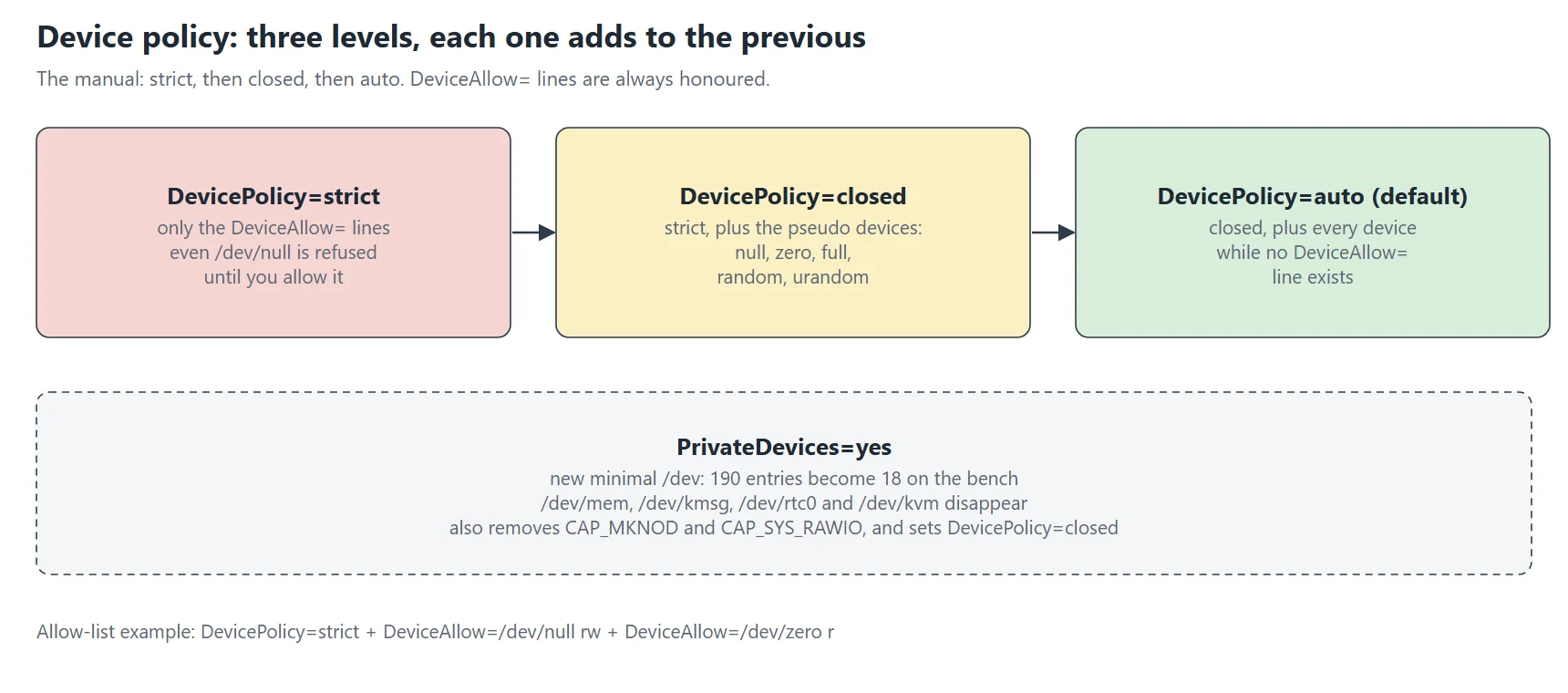
PrivateDevices= gives the service a new, minimal /dev/. According to the manual, that directory contains only the pseudo devices of the API, such as /dev/null, /dev/zero and /dev/random, plus the pseudo terminals. Physical devices such as /dev/sda, /dev/mem and /dev/port are not there. The private /dev/ is read-only and noexec. The directive also installs a filter that blocks the @raw-io system calls, removes CAP_MKNOD and CAP_SYS_RAWIO, and sets DevicePolicy=closed. It exists since version 209. The manual warns that programs which map memory through /dev/zero instead of MAP_ANON may break, and that the directive may be impossible to implement on some systems, so you should not rely on it alone.
What breaks? Anything that needs real hardware: a GPU, a disk read as a block device, a USB serial adapter or /dev/kvm.
sudo systemd-run --quiet --pipe --wait --collect -p PrivateDevices=yes /usr/local/bin/demo-hardening-lab.sh devices
Real output on the test bench:
# baseline
entries in /dev: 190
/dev/mem: present
/dev/kmsg: present
/dev/rtc0: present
/dev/kvm: present

# with PrivateDevices=yes
entries in /dev: 18
/dev/mem: absent
/dev/kmsg: absent
/dev/rtc0: absent
/dev/kvm: absent
The number of entries in /dev drops from 190 to 18, and the four special devices disappear. The lab also confirms the capabilities and the implied policy:
# capabilities, with PrivateDevices=yes (other lines cut)
[...]
CAP_SYS_RAWIO: removed
CAP_MKNOD: removed

# systemctl show on a running unit that also sets PrivateDevices=yes (other lines cut)
[...]
DevicePolicy=closed
PrivateDevices=yes
# 1. Create a drop-in directory named after your service (replace myapp.service by your own unit)
sudo mkdir -p /etc/systemd/system/myapp.service.d
# 2. Write the drop-in. The [Service] header is required and the file name must end in .conf
sudo tee /etc/systemd/system/myapp.service.d/10-private-devices.conf > /dev/null <<'EOF'
[Service]
# Give this service a minimal /dev without physical devices.
PrivateDevices=yes
EOF
# 3. Make systemd re-read its configuration, then restart the service
sudo systemctl daemon-reload
sudo systemctl restart myapp.service
# 4. Check that the setting is active, that the service runs and what it logged
systemctl show -p PrivateDevices --value myapp.service
systemctl is-active myapp.service
sudo journalctl -u myapp.service -n 20 --no-pager
# 5. Undo everything: remove the drop-ins you created, reload and restart
sudo systemctl revert myapp.service
sudo systemctl daemon-reload
sudo systemctl restart myapp.service
Effect on my stack. My media server uses NVENC hardware transcoding when an NVIDIA card is present. Such a service needs the device nodes of the GPU, so PrivateDevices=yes would hide them. Use DeviceAllow= instead. List the device group names of your machine with grep -i nvidia /proc/devices and check them against the manual. A database, a reverse proxy or a PHP-FPM pool normally needs only files and sockets, so expect PrivateDevices=yes to be a good candidate there.
DevicePolicy and DeviceAllow
These two directives work together. The manual says that DevicePolicy= accepts auto, closed and strict, and that each value adds to the one before it. strict allows only the access types that you list. closed also allows the standard pseudo devices such as /dev/null, /dev/zero, /dev/full, /dev/random and /dev/urandom. auto, the default, also allows every device while no explicit DeviceAllow= line exists. A + prefix on the executable path does not bypass the policy. Both directives exist since version 208.
DeviceAllow= takes two strings: a device specifier, then a combination of r (read), w (write) and m (create the node). The specifier is either a path that starts with /dev/ (without wildcards) or char- or block- followed by a group name from /proc/devices, such as char-pts or block-loop, where * and ? are allowed. The manual says that the groups must be resolvable when the unit starts, and it suggests Wants=modprobe@xyz.service with After=modprobe@xyz.service to load the module first. It implements the filter with eBPF.
What breaks? With strict, everything you forget to list, starting with /dev/null.
sudo systemd-run --quiet --pipe --wait --collect -p DevicePolicy=strict -p 'DeviceAllow=/dev/null rw' -p 'DeviceAllow=/dev/zero r' /usr/local/bin/demo-hardening-lab.sh policy
Real output on the test bench, for the default policy, for closed and for strict with a two-line allow list:
# baseline (DevicePolicy=auto)
/dev/zero: readable
/dev/urandom: readable

# DevicePolicy=closed
/dev/zero: readable
/dev/urandom: readable

# DevicePolicy=strict, allow /dev/null (rw) and /dev/zero (r)
/dev/zero: readable
/dev/urandom: blocked
The allow list works: /dev/zero stays readable and /dev/urandom is refused. Next, the classic mistake. Without any DeviceAllow=, strict even refuses /dev/null, which almost every program opens:
/bin/sh: line 1: /dev/null: Operation not permitted
redirect to /dev/null: blocked

# the same test with DeviceAllow=/dev/null rw
redirect to /dev/null: allowed
# 1. Create a drop-in directory named after your service (replace myapp.service by your own unit)
sudo mkdir -p /etc/systemd/system/myapp.service.d
# 2. Write the drop-in. The [Service] header is required and the file name must end in .conf
sudo tee /etc/systemd/system/myapp.service.d/10-device-policy.conf > /dev/null <<'EOF'
[Service]
# Allow only the devices that this service really needs.
DevicePolicy=strict
DeviceAllow=/dev/null rw
DeviceAllow=/dev/zero r
DeviceAllow=/dev/urandom r
EOF
# 3. Make systemd re-read its configuration, then restart the service
sudo systemctl daemon-reload
sudo systemctl restart myapp.service
# 4. Check that the setting is active, that the service runs and what it logged
systemctl show -p DevicePolicy --value myapp.service
systemctl is-active myapp.service
sudo journalctl -u myapp.service -n 20 --no-pager
# 5. Undo everything: remove the drop-ins you created, reload and restart
sudo systemctl revert myapp.service
sudo systemctl daemon-reload
sudo systemctl restart myapp.service
Effect on my stack. In systemd kernel protection, this pair is the right tool for the GPU of my media server: keep the device policy tight and add one DeviceAllow= line per device group of the card. Start from closed, then add the groups that the journal says are missing.
The /proc view
ProtectProc
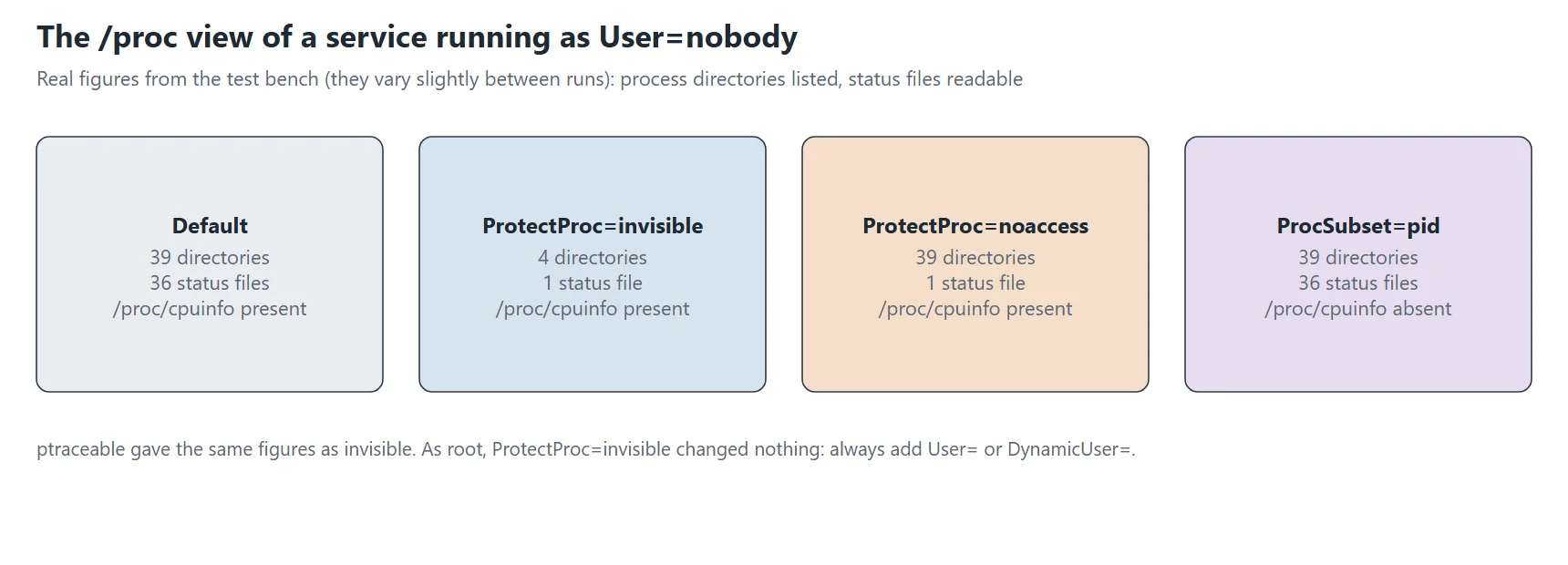
ProtectProc= sets the hidepid= mount option of the service’s own /proc. The manual lists four values: default (no restriction), noaccess (the service loses access to most of the process metadata of other users), invisible (processes of other users disappear) and ptraceable (it hides the processes the service cannot ptrace()). It implies MountAPIVFS=yes and exists since version 247. The manual adds three conditions. Root is not affected, so you must combine the directive with User= or DynamicUser=yes. It has no effect if the service holds CAP_SYS_PTRACE. And it does nothing if the kernel lacks per-mount hidepid= support.
What breaks? Monitoring agents, process listing tools and anything that needs to see other users’ processes.
sudo systemd-run --quiet --pipe --wait --collect -p User=nobody -p ProtectProc=invisible /usr/local/bin/demo-hardening-lab.sh proc
Real output on the test bench. The lab counts the process directories that /proc shows and the status files that it can read. The numbers change from one run to another because processes come and go, but the proportions are stable:
# User=nobody, baseline
process directories in /proc: 39
process status files readable: 36
/proc/cpuinfo: present

# User=nobody, ProtectProc=invisible
process directories in /proc: 4
process status files readable: 1
/proc/cpuinfo: present

# User=nobody, ProtectProc=noaccess
process directories in /proc: 39
process status files readable: 1
/proc/cpuinfo: present

# User=nobody, ProtectProc=ptraceable
process directories in /proc: 4
process status files readable: 1
/proc/cpuinfo: present
The result matches the manual. With invisible and ptraceable, the unit sees 4 process directories instead of 39. With noaccess, the directories are still listed, but only one status file stays readable. Finally, I ran the same test as root, without User=:
# root, ProtectProc=invisible
process directories in /proc: 39
process status files readable: 36
/proc/cpuinfo: present
Nothing changed, as the manual announces: root is not affected.
# 1. Create a drop-in directory named after your service (replace myapp.service by your own unit)
sudo mkdir -p /etc/systemd/system/myapp.service.d
# 2. Write the drop-in. The [Service] header is required and the file name must end in .conf
sudo tee /etc/systemd/system/myapp.service.d/10-protect-proc.conf > /dev/null <<'EOF'
[Service]
# Hide the processes of other users from this service. It must not run as root.
User=myapp
ProtectProc=invisible
EOF
# 3. Make systemd re-read its configuration, then restart the service
sudo systemctl daemon-reload
sudo systemctl restart myapp.service
# 4. Check that the setting is active, that the service runs and what it logged
systemctl show -p ProtectProc --value myapp.service
systemctl is-active myapp.service
sudo journalctl -u myapp.service -n 20 --no-pager
# 5. Undo everything: remove the drop-ins you created, reload and restart
sudo systemctl revert myapp.service
sudo systemctl daemon-reload
sudo systemctl restart myapp.service
Effect on my stack. If you run an agent that inventories processes, such as a SIEM agent, expect invisible to blind it. Web applications and databases that run under their own user normally do not look at other users’ processes, so they are good candidates for systemd kernel protection.
ProcSubset
ProcSubset= accepts all (the default) and pid. With pid, the service’s /proc keeps only the files that belong to process management and introspection. The manual says that it sets the subset= mount option, that it implies MountAPIVFS=yes, that it has the same restrictions as ProtectProc=, and that many kernel APIs under /proc become unavailable, so it suits only a few specific cases. It exists since version 247.
sudo systemd-run --quiet --pipe --wait --collect -p User=nobody -p ProcSubset=pid /usr/local/bin/demo-hardening-lab.sh proc
Real output on the test bench:
process directories in /proc: 39
process status files readable: 36
/proc/cpuinfo: absent
All the processes remain visible, but /proc/cpuinfo is gone. Therefore, expect programs that read /proc/cpuinfo or /proc/meminfo to fail.
# 1. Create a drop-in directory named after your service (replace myapp.service by your own unit)
sudo mkdir -p /etc/systemd/system/myapp.service.d
# 2. Write the drop-in. The [Service] header is required and the file name must end in .conf
sudo tee /etc/systemd/system/myapp.service.d/10-proc-subset.conf > /dev/null <<'EOF'
[Service]
# Show only the process files in /proc for this service.
ProcSubset=pid
EOF
# 3. Make systemd re-read its configuration, then restart the service
sudo systemctl daemon-reload
sudo systemctl restart myapp.service
# 4. Check that the setting is active, that the service runs and what it logged
systemctl show -p ProcSubset --value myapp.service
systemctl is-active myapp.service
sudo journalctl -u myapp.service -n 20 --no-pager
# 5. Undo everything: remove the drop-ins you created, reload and restart
sudo systemctl revert myapp.service
sudo systemctl daemon-reload
sudo systemctl restart myapp.service
Effect on my stack. Keep this directive for small, simple services, because language runtimes and exporters often read system files from /proc.
The hostname
ProtectHostname
ProtectHostname= takes a boolean or private. The manual says that yes gives the unit its own UTS namespace and blocks sethostname() and setdomainname(), and that private allows the changes but confines them to that namespace. A hostname can follow a colon, as in yes:foo. In both cases, the unit no longer sees later changes of the host’s hostname. The directive does not block hostnamectl: use User= and Group= for that. It exists since version 242.
What breaks? Almost nothing in practice: only programs that set a hostname, such as installers, some container tools or network setup scripts.
The lab changes a hostname, so it only runs when you pass LAB_ALLOW_HOST=1, and you must always pair it with ProtectHostname. Without the directive, the script would change the real hostname of the machine. Note the guard first:
sudo systemd-run --quiet --pipe --wait --collect /usr/local/bin/demo-hardening-lab.sh host

# real output on the test bench (no directive, no LAB_ALLOW_HOST):
host: skipped (pass LAB_ALLOW_HOST=1)
sudo systemd-run --quiet --pipe --wait --collect -E LAB_ALLOW_HOST=1 -p ProtectHostname=yes /usr/local/bin/demo-hardening-lab.sh host

# real output on the test bench:
hostname: change blocked
[host hostname unchanged: yes]
The change is refused, and I checked that the hostname of the machine was unchanged afterwards. The private value failed on my bench, for the same reason as the control group values:
sudo systemd-run --quiet --pipe --wait --collect -E LAB_ALLOW_HOST=1 -p ProtectHostname=private /usr/local/bin/demo-hardening-lab.sh host

# real output on the test bench:
Failed to parse ProtectHostname: private
Systemd 257 does not know private, while the current manual documents it. Check your version before you rely on it.
# 1. Create a drop-in directory named after your service (replace myapp.service by your own unit)
sudo mkdir -p /etc/systemd/system/myapp.service.d
# 2. Write the drop-in. The [Service] header is required and the file name must end in .conf
sudo tee /etc/systemd/system/myapp.service.d/10-protect-hostname.conf > /dev/null <<'EOF'
[Service]
# Forbid changing the hostname from this service.
ProtectHostname=yes
EOF
# 3. Make systemd re-read its configuration, then restart the service
sudo systemctl daemon-reload
sudo systemctl restart myapp.service
# 4. Check that the setting is active, that the service runs and what it logged
systemctl show -p ProtectHostname --value myapp.service
systemctl is-active myapp.service
sudo journalctl -u myapp.service -n 20 --no-pager
# 5. Undo everything: remove the drop-ins you created, reload and restart
sudo systemctl revert myapp.service
sudo systemctl daemon-reload
sudo systemctl restart myapp.service
Effect on my stack. My notes mention no service that sets a hostname, so I would expect this to be the safest directive of systemd kernel protection.
Measure the result with systemd-analyze security
Now that you know the ten directives of systemd kernel protection, you can measure their combined effect. I started a transient service that only sleeps, first without any directive and then with all nine protections of this part at once. The manual describes the overall value as an exposure level from 0.0 to 10.0. Here is what the tool printed, with the other lines cut:
# no directive
[...]
→ Overall exposure level for demo-hardening-lab-probe.service: 9.6 UNSAFE 😨

# with ProtectKernelTunables, ProtectKernelModules, ProtectKernelLogs, ProtectClock,
# ProtectControlGroups, PrivateDevices, ProtectProc=invisible, ProcSubset=pid and ProtectHostname
[...]
→ Overall exposure level for demo-hardening-lab-probe.service: 7.3 MEDIUM 😐
The score fell from 9.6 to 7.3. Each directive of this part has a small weight, between 0.1 and 0.2 on this bench, as the unprotected run shows:
✗ PrivateDevices=                                             Service potentially has access to hardware devices                           0.2
✗ ProtectClock=                                               Service may write to the hardware clock or system clock                      0.2
✗ ProtectKernelLogs=                                          Service may read from or write to the kernel log ring buffer                 0.2
✗ ProtectControlGroups=                                       Service may modify the control group file system                             0.2
✗ ProtectKernelModules=                                       Service may load or read kernel modules                                      0.2
✗ ProtectHostname=                                            Service may change system host/domainname                                    0.1
✗ ProtectKernelTunables=                                      Service may alter kernel tunables                                            0.2
✗ ProtectProc=                                                Service has full access to process tree (/proc hidepid=)                     0.2
✗ ProcSubset=                                                 Service has full access to non-process /proc files (/proc subset=)           0.1
A single directive therefore moves the score only a little. For example, a demo unit with only ProtectKernelTunables=yes went from 9.6 to 9.2. Use the score to find protections you have not looked at yet, not as a goal.
Common mistakes
- Editing the file that the package installed. An update will replace it. Use a drop-in instead.
- Forgetting
daemon-reload. After you write a drop-in by hand, systemd keeps the old configuration until you reload it.systemctl editreloads for you. - Enabling several directives at once. When the service fails, you do not know which one caused it. Change one directive, restart, read the journal.
- Using
ProtectProc=on a root service. The manual says that root is not affected, and my test showed no change. Combine it withUser=orDynamicUser=yes. - Switching on
ProtectClock=for a time daemon. Chrony or ntpd must set the clock. - Using
PrivateDevices=yeson a service that needs hardware. UseDeviceAllow=for the devices it needs. - Forgetting
/dev/nullwithDevicePolicy=strict. My test shows the error:Operation not permitted. - Expecting
ProtectKernelModules=to stop every module load. The manual says that limited automatic loading can still happen. - Trusting an empty file as a proof. A hidden path is an empty node with mode 000. Measure what the service reads, not whether it can open the file.
- Using a value that your systemd does not know.
privateandstrictfailed on systemd 257. Checksystemctl --versionand the manual of your version.
Final checklist
Check these points each time you add systemd kernel protection to a service.
- I tested on a non-critical service or a test machine, with a snapshot or a console.
- I know my systemd version and I read the manual page of that version.
- I added one directive at a time in a drop-in under
/etc/systemd/system/UNIT.d/. - I ran
systemctl daemon-reloadand restarted the service. - I checked the property with
systemctl show -p NAME --valueand read the journal. - I measured the effect instead of assuming it (bytes read, entries counted, error messages).
- I know how to undo it:
systemctl revert, reload, restart.
What I take away from systemd kernel protection
- Most of these directives cost nothing on services that only use files and sockets. A reverse proxy, a database or an application server rarely needs the kernel interfaces that they close.
- The exceptions are predictable. Time daemons need the clock, GPU users need device nodes, container runtimes need control groups, and monitoring agents need the full
/proc. - Hidden does not mean absent. Systemd mounts empty mode-000 nodes over the paths it protects. Root can open them but reads nothing, so tests must count what they read.
- Defaults hide traps.
DevicePolicy=autokeeps every device open while no explicitDeviceAllow=exists, soProtectClock=alone did not make the clock device read-only on my bench. - Versions matter. The values
privateandstrictofProtectControlGroups=andprivateofProtectHostname=do not exist in systemd 257. - The host settings and the service settings complement each other. Sysctls and module blacklists protect the machine, while systemd kernel protection limits each service.
Sources
- systemd.exec(5): ProtectKernelTunables, ProtectKernelModules, ProtectKernelLogs, ProtectClock, ProtectControlGroups, PrivateDevices, ProtectProc, ProcSubset, ProtectHostname
- systemd.resource-control(5): DevicePolicy, DeviceAllow
- systemd.unit(5): drop-ins and precedence
- systemctl(1), systemd-run(1), systemd-analyze(1) and journalctl(1)
- My own notes for the facts about my stack, and the test bench described in the section "Before you start".
Earlier in this series
- Systemd hardening, directive by directive: measuring with systemd-analyze security
- Systemd filesystem protection: hardening part 2, directive by directive
- Systemd capabilities: from root to one single privilege, with a tested lab